
MailPoet is one of the most popular ways to send newsletters from WordPress, and its own sign-up forms work well when all you want is a name and an email. But most people join a list somewhere else: on a contact form, a quote request, a class booking or an order form. If those forms can’t talk to MailPoet, you end up copying addresses across by hand, or not at all. The fix is to connect WordPress forms to MailPoet directly, so every sign-up lands in your list on its own.
In this guide we’ll show you how to connect WordPress forms to MailPoet so people who tick a box are added to your list automatically, along with any extra answers you want to keep, such as their favorite class or the service they asked about. We’ll use Custom Contact Forms, the form plugin we make, with a newsletter form for a yoga studio as the example.
Table of Contents
When to connect WordPress forms to MailPoet
If a page exists only to collect newsletter sign-ups, MailPoet’s own form is the simplest choice. A form plugin earns its place when signing up is one part of something bigger:
- Contact and quote forms with a “Send me tips and offers” checkbox, so enquiries grow your list without a second form.
- Bookings, registrations and orders, where you already have the person’s name and email and want to keep in touch after the event or purchase.
- Forms that ask more questions, like interests, location or budget, that you want saved on the subscriber so you can send more relevant emails later.
- Forms that need everything else a form plugin does: saved entries, email notifications to your team, conditional logic, file uploads and spam protection.
What you need
- MailPoet, installed and active on your WordPress site, with at least one list. Use its latest version (more on why below).
- Custom Contact Forms, free from WordPress.org.
- Custom Contact Forms Pro, which adds MailPoet along with ActiveCampaign, Brevo, Kit and MailerLite. The free plugin connects to Mailchimp.
Step 1: Check that MailPoet is connected
Because MailPoet runs on the same WordPress site, Custom Contact Forms Pro talks to it directly. There is no account to link and no API key to copy. Go to Forms → Integrations and find the MailPoet card. It should say Connected. Click Settings to see how many MailPoet lists were found.
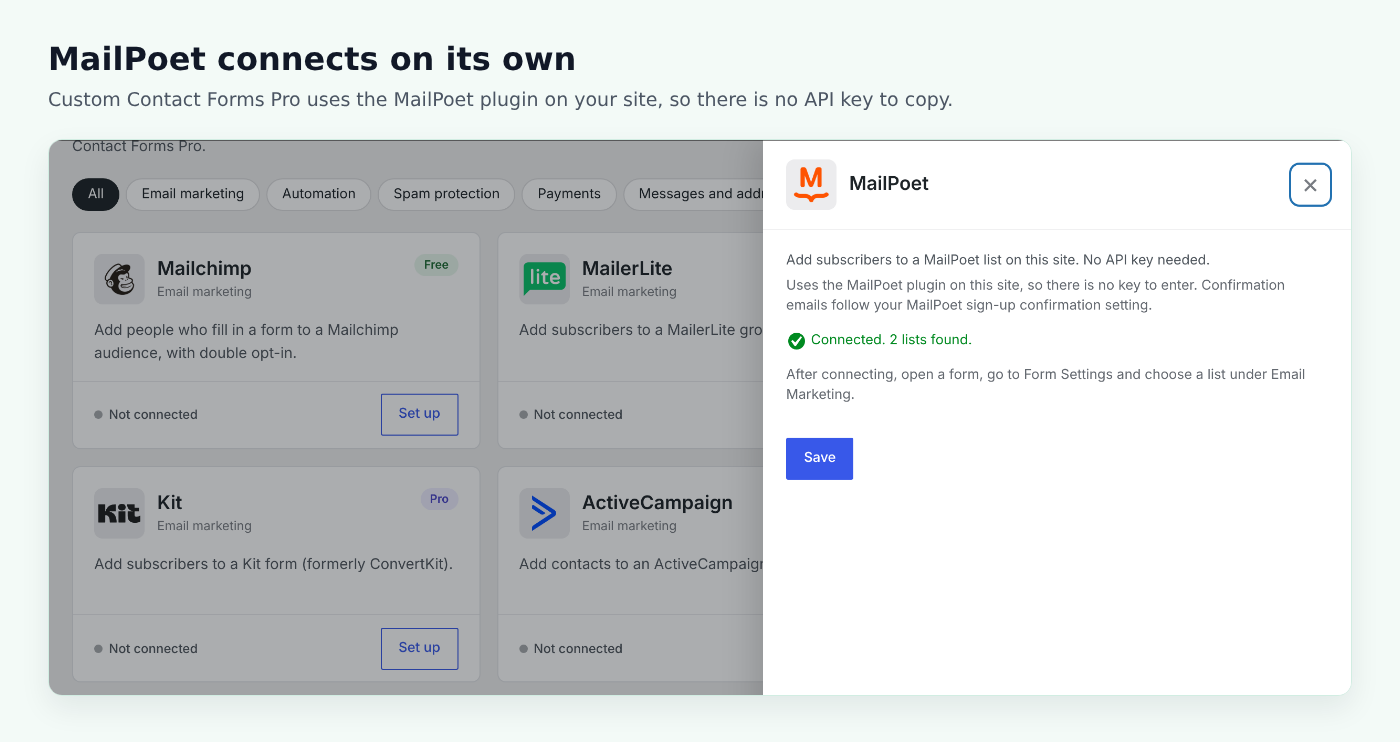
If the card doesn’t say Connected, make sure the MailPoet plugin is active under Plugins.
Step 2: Add a consent checkbox to your form
Open the form you want to connect, or create a new one under Forms → Add New Form. It needs an Email field, and a Name field if you want first and last names in MailPoet. Then add a Checkboxes field that asks permission, such as “Yes, send me class updates and offers”.
Leave the checkbox unticked by default. A box people tick themselves is clear consent, and it keeps your list full of people who actually want your emails.
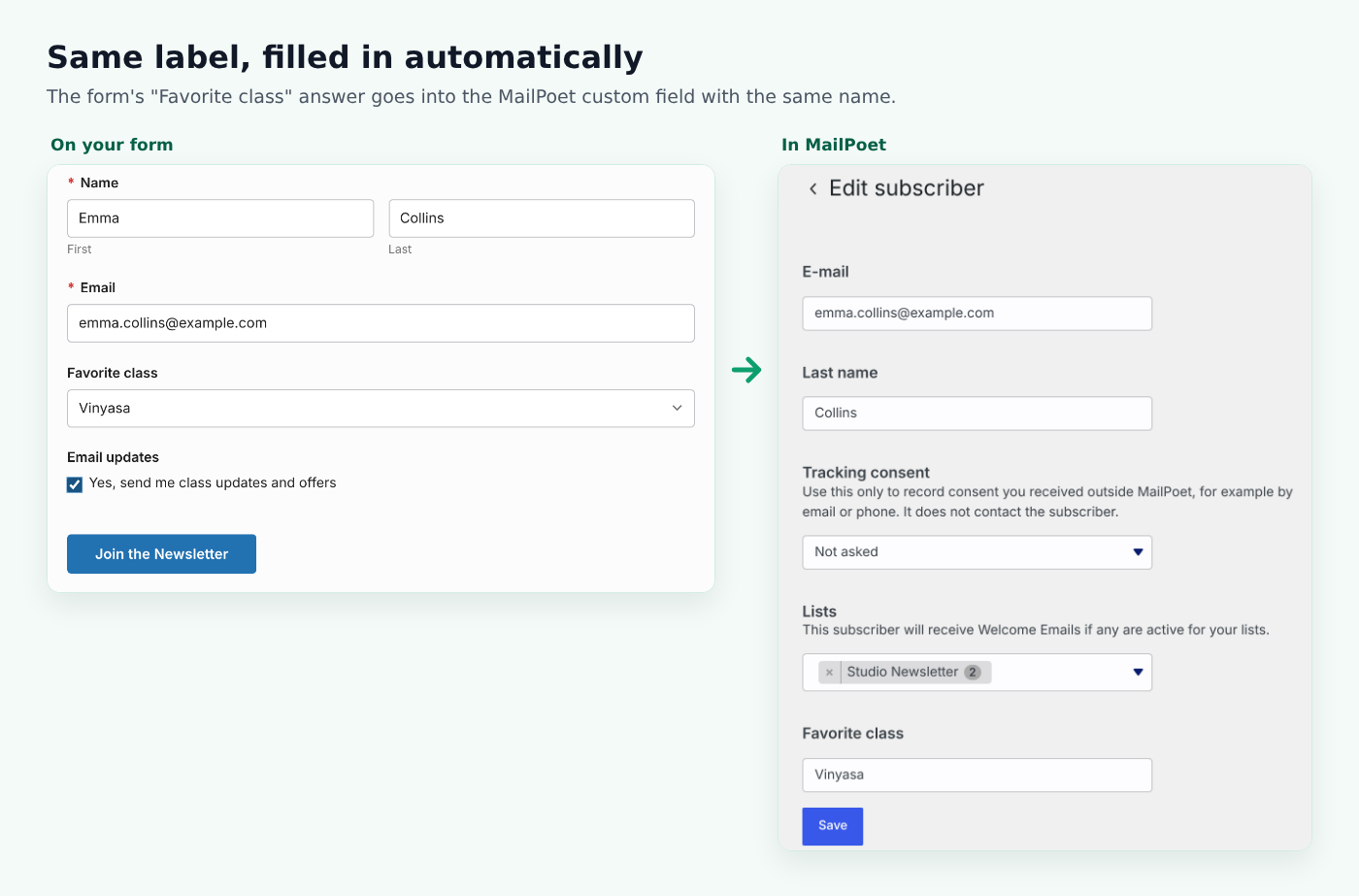
Our yoga studio form asks for a name, an email, a favorite class from a dropdown, and the consent checkbox.
Step 3: Choose MailPoet and a list in Form Settings
In the form builder, open Form Settings and scroll to Email Marketing:
- Under Add subscribers to, choose MailPoet.
- Under List, pick the MailPoet list. If you just created it, click Refresh.
- Under Only add people who tick, choose your consent checkbox.
- Click Save Form.
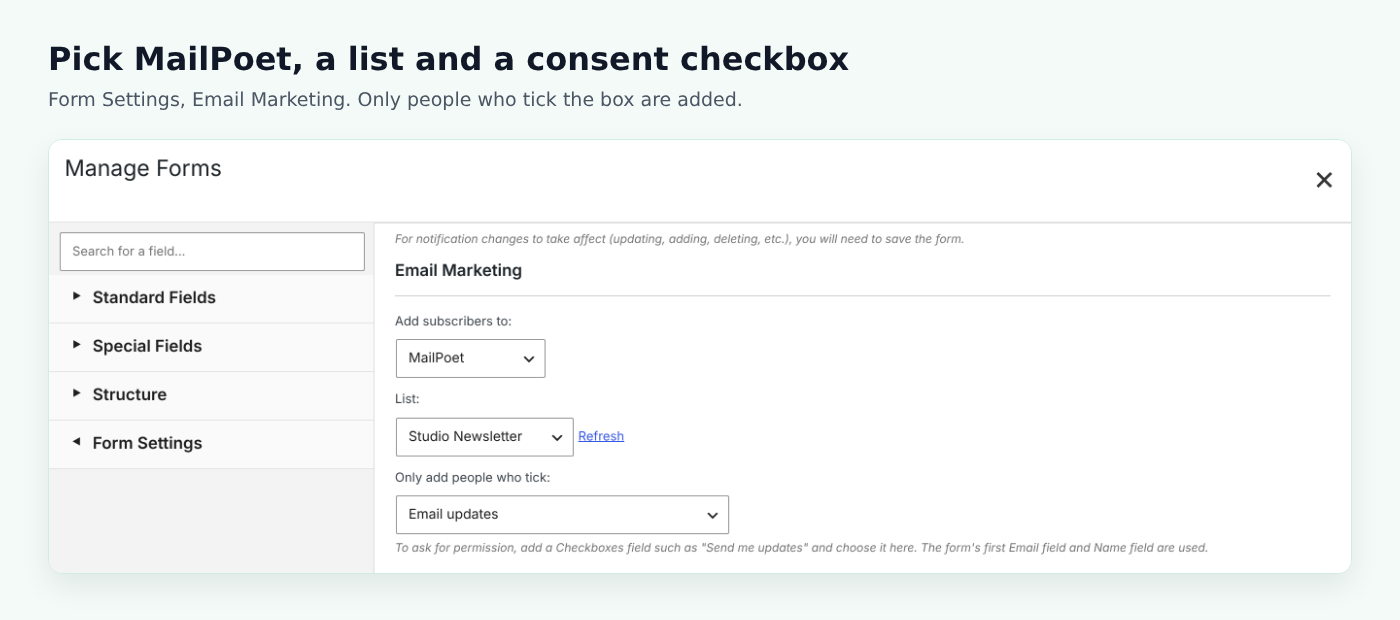
People who don’t tick the box are not added to MailPoet, but their entry is still saved and your notification emails still go out. If you leave Only add people who tick set to “No checkbox needed”, everyone who sends the form is added, so keep that for forms whose only purpose is signing up.
Step 4: Save extra answers in MailPoet custom fields
MailPoet can store more than a name and email through custom fields, and you can use them to segment your list later. Custom Contact Forms Pro fills them in by matching labels: if your form has a field labelled “Favorite class” and MailPoet has a custom field called “Favorite class”, the answer is copied across.
A few details worth knowing:
- Matching ignores capitals and punctuation, so “Favorite class” and “favorite class?” still match. Keep the wording otherwise the same.
- Text, dropdown and radio answers are copied as written. If someone picks several options, they’re saved together, separated by commas.
- A MailPoet checkbox custom field is ticked when the matching form checkbox is ticked.
- MailPoet date fields use MailPoet’s own date formats, so they are left for MailPoet to manage.
- People already on your list have their custom fields updated with the new answers.
Step 5: Add the form to a page and test it
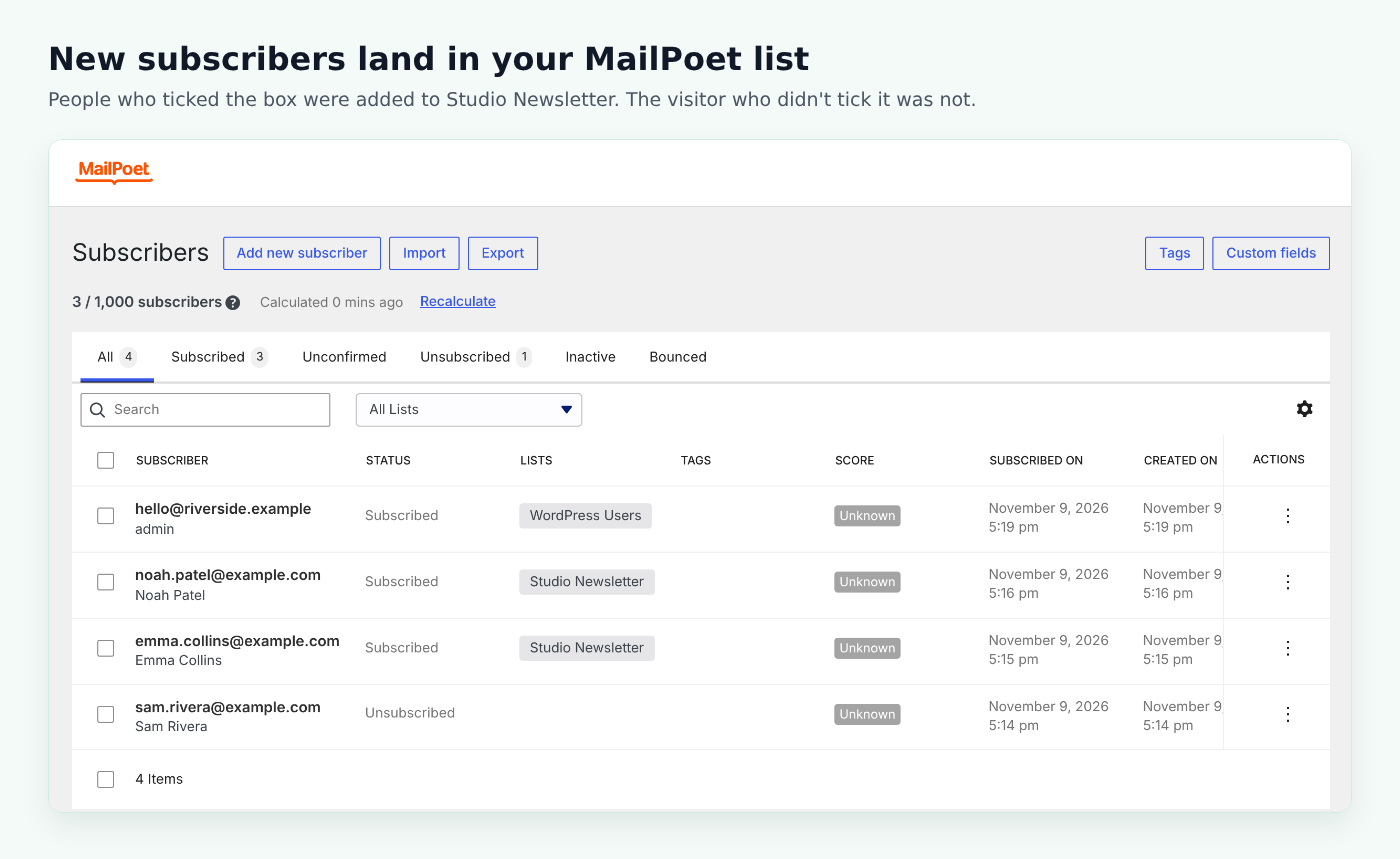
Add the form to a page with the Contact Form (CCF) block or its shortcode, such as . Fill it in once with your own email and the box ticked, then once without ticking it. In MailPoet → Subscribers, the first test should appear in your list and the second should not.
Confirmation and welcome emails
MailPoet stays in charge of its own emails. If sign-up confirmation (double opt-in) is on under MailPoet → Settings → Sign-up Confirmation, new subscribers get a confirmation email and show as Unconfirmed until they click it. If you’ve set up a welcome email for the list, MailPoet sends it as usual. Someone who already confirmed earlier isn’t asked to confirm again.
If MailPoet adds the subscriber but can’t send its confirmation or welcome email, the subscriber is kept and the problem is logged, so you know to check how MailPoet sends email.
People who unsubscribed are never added back
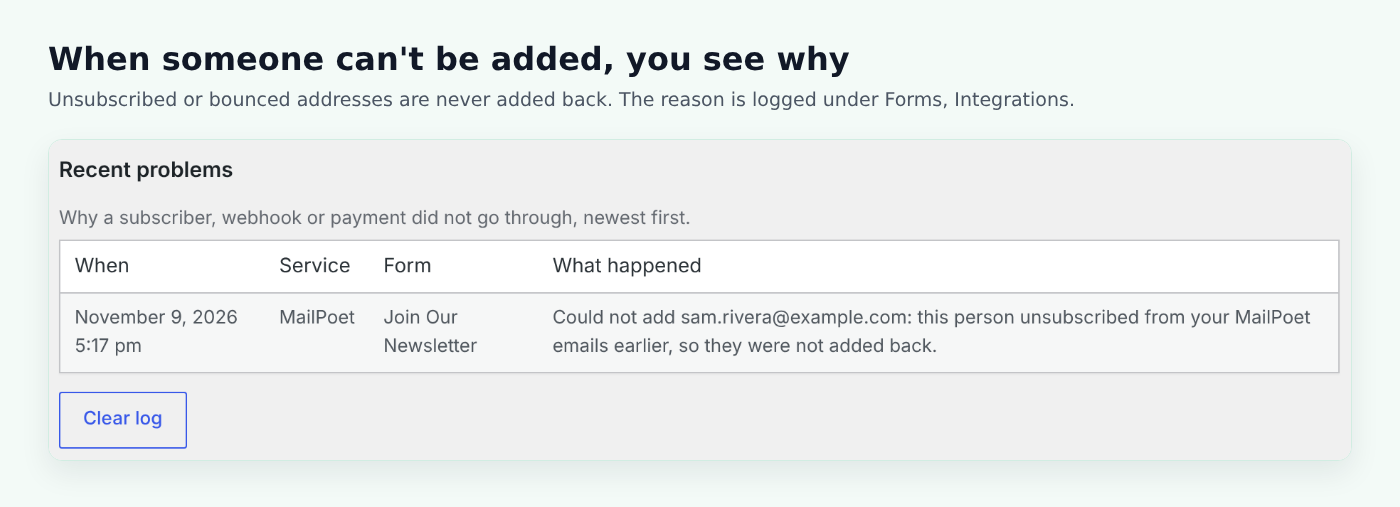
If someone unsubscribed from your MailPoet emails, or their address bounced, filling in another form won’t put them back on your list. That protects your sender reputation and respects their choice. They can still rejoin through a MailPoet sign-up form if they change their mind.
Whenever a subscriber can’t be added, the reason appears under Recent problems at the bottom of Forms → Integrations, with the date and the form it came from.
Required custom fields in MailPoet
MailPoet lets you mark a custom field as required. In older versions of MailPoet, that made every form plugin send every required field on the site, even ones that form never asked about. A form with only a name and an email couldn’t add anyone if another MailPoet form required, say, a phone number.
We worked with the MailPoet team to improve how form plugins connect to MailPoet, and Custom Contact Forms is now listed in MailPoet’s list of forms and plugins compatible with MailPoet. With the latest MailPoet, a form only needs the custom fields it actually collects, the same way MailPoet’s own forms work. So:
- Keep MailPoet up to date. If Recent problems says MailPoet requires a custom field your form doesn’t have, updating MailPoet is the fix.
- If your form has a field that matches a required MailPoet field, make it required on the form too. Otherwise someone who skips it can’t be added, and Recent problems names the field.
Ideas for forms that grow your MailPoet list
- Quote requests: add a “Send me seasonal tips” checkbox to a lead generation form and follow up with leads who aren’t ready to buy yet.
- Class or event registrations: save the class or session they chose in a custom field, then email each group separately.
- Orders and payments: with Pro’s Stripe and PayPal payments, customers can join your list in the same form they pay with.
- Contact forms: one optional checkbox turns everyday enquiries into subscribers.
Whatever the form, keep spam bots out of your list too. Our WordPress form spam protection guide covers the options.
Frequently asked questions
Do I need an API key to connect WordPress forms to MailPoet?
No. MailPoet runs inside your WordPress site, so Custom Contact Forms Pro connects to it directly. Install both plugins and the MailPoet card under Forms → Integrations shows Connected.
Does it work with the free version of MailPoet?
Yes. The connection uses MailPoet’s plugin on your site, which is free on WordPress.org. Your MailPoet plan only affects MailPoet’s own limits and features.
Will subscribers get a confirmation email?
Only if sign-up confirmation is turned on in MailPoet’s settings. MailPoet decides whether to send it, exactly as it does for its own forms.
What happens if someone fills in the form twice?
They aren’t duplicated. If they’re already in MailPoet, they’re added to the form’s list if needed and their custom fields are updated with the new answers. If they unsubscribed earlier, they’re left as they are.
Can I send form entries to MailPoet for free?
MailPoet is part of Custom Contact Forms Pro. The free plugin connects to Mailchimp and can send entries anywhere through webhooks.
Where do I see why someone wasn’t added?
Under Recent problems at the bottom of Forms → Integrations. Each line shows the date, the form, and the reason in plain words.
Connect WordPress forms to MailPoet today. Custom Contact Forms Pro is $80 a year for all the sites you own, with no transaction fees and a 14-day refund, no questions asked. It also adds ActiveCampaign, Brevo, Kit and MailerLite, Stripe and PayPal payments, multi-step forms and more.
Free on WordPress.org
Never lose another form entry
Custom Contact Forms saves every entry on your site and includes conditional logic, file uploads, a signature field, Mailchimp, webhooks and spam protection, all free.
Get our new form guides by email
Practical guides on forms, email delivery and spam, plus news when Custom Contact Forms gets new features.
We only use your email to send our guides and news. Unsubscribe anytime. Privacy Policy
