
Most unhappy customers don’t complain. They just don’t come back. A short feedback survey gives them an easy way to tell you what went wrong, and gives happy customers a moment to say what you’re doing right.
In this guide we’ll build a customer feedback survey in WordPress with a star rating, a survey grid and a follow-up question that only appears for customers who had a bad experience. It takes about ten minutes, and every response is saved on your own site.
Table of Contents
What makes a good customer feedback survey
- It’s short. Aim for something people can finish in under two minutes. Every extra question means fewer responses.
- It starts with one easy question. A star rating is quick to answer and gives you a number to track.
- It asks about specifics. A survey grid lets customers rate several parts of their experience, like ordering, delivery and support, in one compact question.
- It follows up on bad experiences. When someone is unhappy, the most useful thing you can learn is why.
- Most questions are optional. Only the rating needs to be required. A half-finished survey is better than none.
How to create a customer feedback survey in WordPress
Step 1: Install Custom Contact Forms and Pro
Install the free Custom Contact Forms plugin from WordPress.org, then upload Custom Contact Forms Pro, which adds the star rating and survey grid fields used in this guide. Pro installs on top of the free plugin, so any forms you already have stay as they are.
Step 2: Start from the Customer Satisfaction Survey template
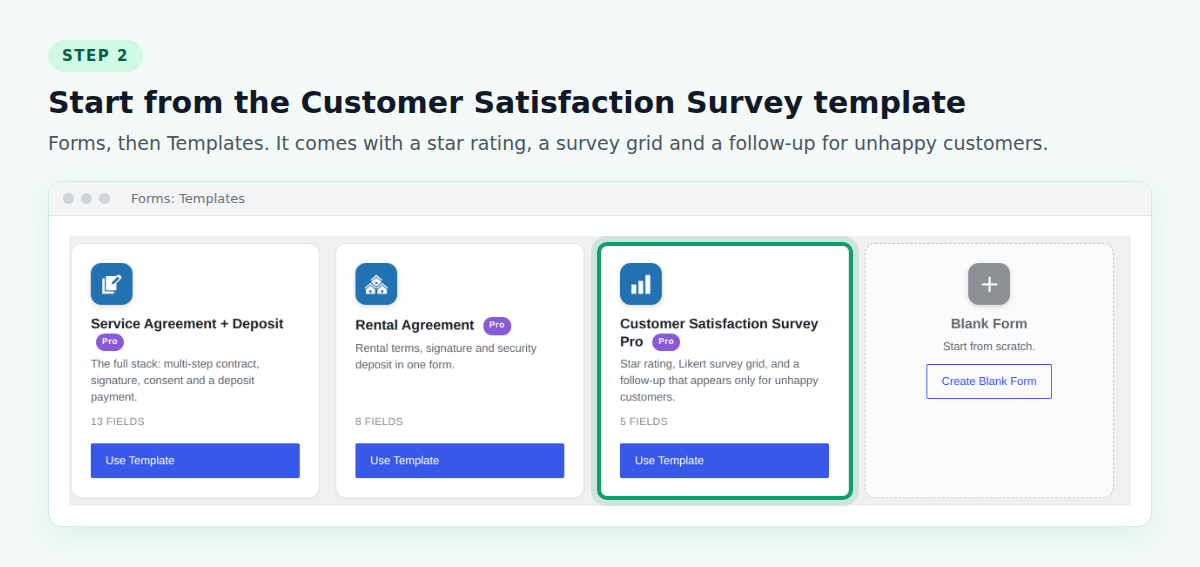
Go to Forms → Templates and click Use Template on Customer Satisfaction Survey Pro. It comes with a star rating, a survey grid, a “Would you recommend us?” question and a follow-up for unhappy customers, so you only need to adjust the wording. You can also start from a blank form and add the same fields.
Step 3: Add a star rating
The first question should be the easiest: “How would you rate your experience?” with a Rating field. Customers click a star, and the number of stars is saved with their response. Set it to required, and give it a clear slug like overall-rating in its Basic settings, because you’ll use it in Step 5.
Step 4: Add a survey grid
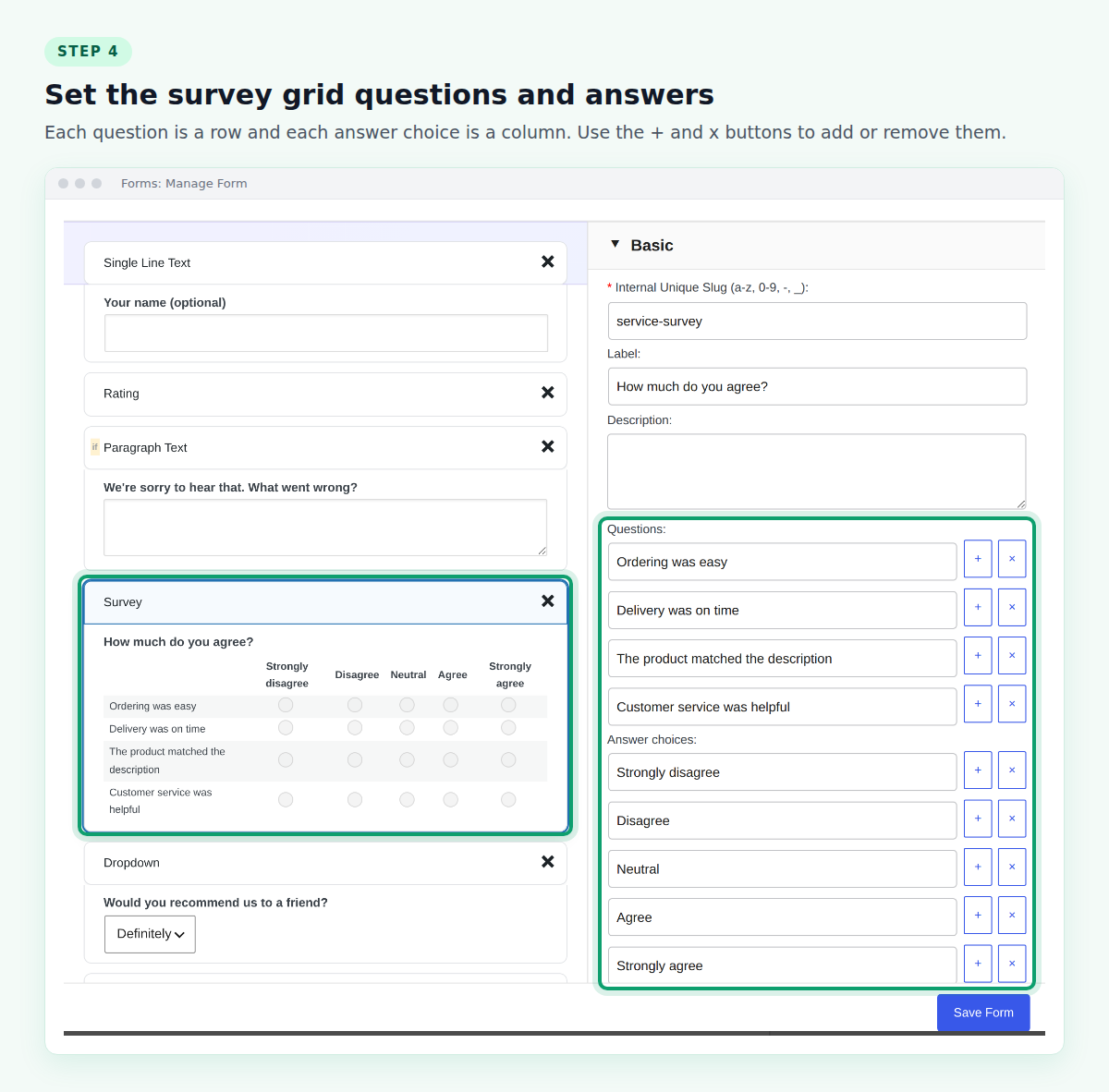
A Survey field shows a grid where customers rate several statements on the same scale. Click the field to open its settings, then:
- Under Questions, add one row per statement, such as “Ordering was easy,” “Delivery was on time” and “Customer service was helpful.”
- Under Answer choices, add the scale, such as Strongly disagree, Disagree, Neutral, Agree and Strongly agree.
Keep it to four or five rows. Statements about things you can actually change give you the most useful answers.
Step 5: Ask unhappy customers what went wrong
This is the question that makes a feedback survey worth sending. Add a Paragraph Text field, “We’re sorry to hear that. What went wrong?”, then show it only to customers who gave a low rating:
- Click the field and open Advanced.
- Switch on Enable Conditional Logic.
- Set the rule to: Show this field if All of these conditions are true,
overall-rating<4.
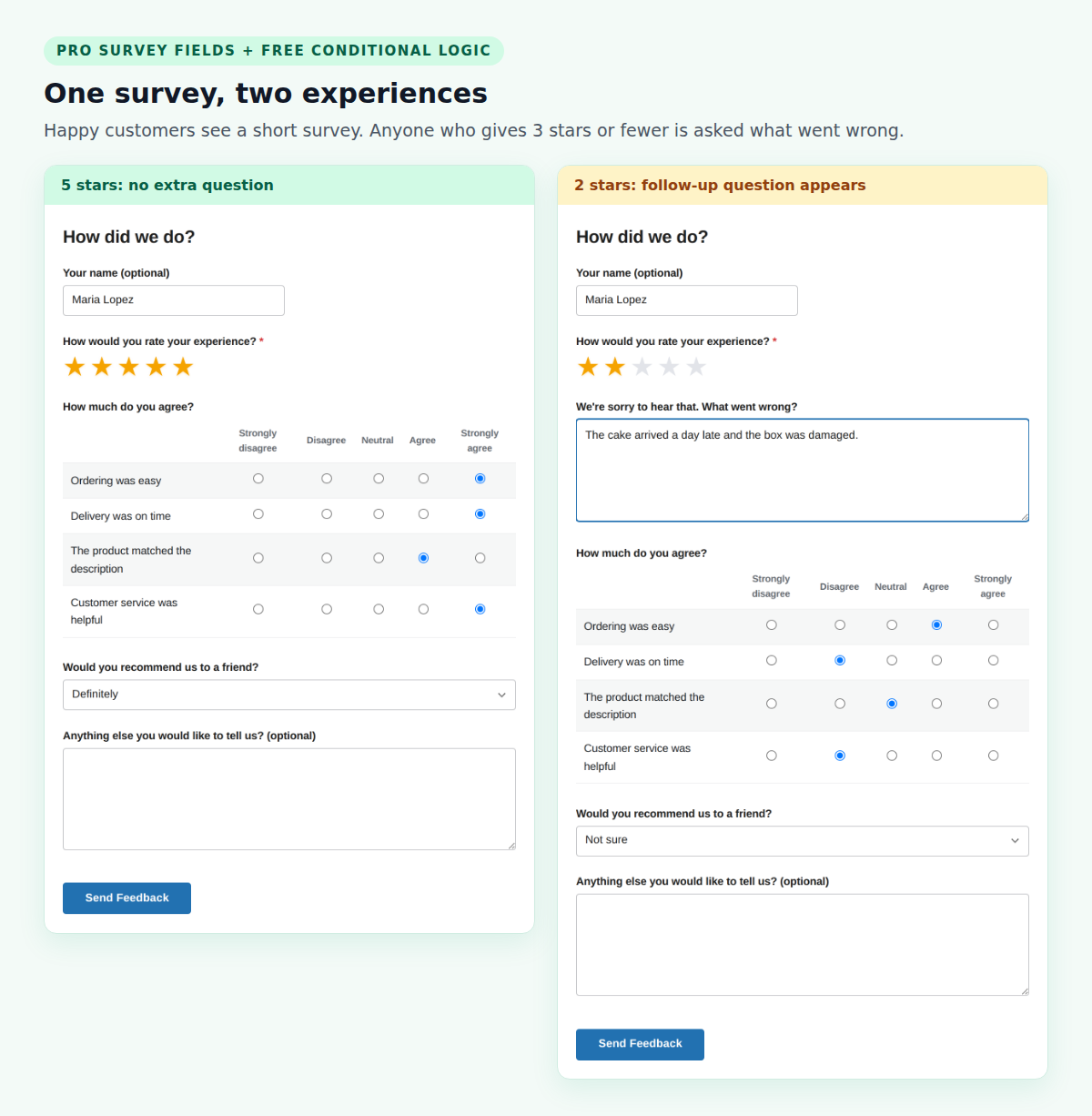
Now anyone who gives 1, 2 or 3 stars is asked what went wrong, and happy customers never see the question. Leave this field optional, so nobody is forced to write a complaint. Conditional logic is included free in Custom Contact Forms, and our conditional logic guide covers it in more detail.
Finish with an optional “Would you recommend us to a friend?” dropdown and an “Anything else you’d like to tell us?” box. A name field is optional too, since some people give more honest feedback anonymously.
Step 6: Add the survey to a page and send it to customers
Create a page such as “Feedback” and add the Custom Contact Forms block with your survey. Then put the link where customers will see it right after their experience:
- In your order confirmation or follow-up emails
- On receipts, invoices or packing slips, as a short link or QR code
- On your thank-you page after a booking or purchase
Ask soon after the experience, while it’s fresh. A survey sent a few days after delivery gets more accurate answers than one sent a month later.
Step 7: Read the results
Every response is saved in WordPress under Forms. Open the survey to see the list of responses, and click any one to read the rating, each survey grid answer and the follow-up comment.
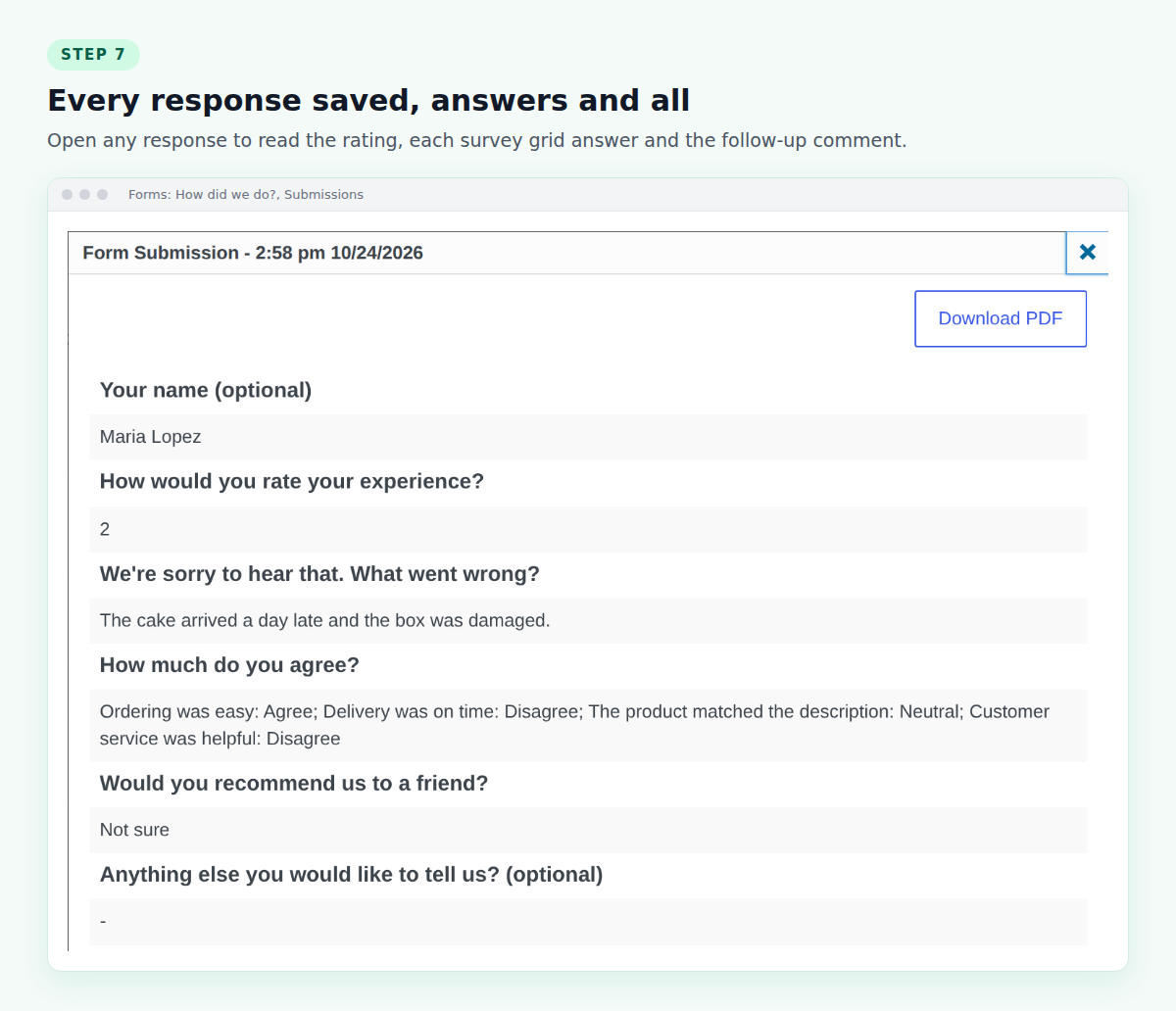
To spot trends, click Export CSV and open the file in Excel or Google Sheets. The rating is saved as a number, so you can average it month by month. Each survey grid is saved as one line, like “Ordering was easy: Agree; Delivery was on time: Disagree”, which makes it easy to search for the answers you’re worried about.
Tips for getting more responses
- Say how long it takes. “Two quick questions” or “Takes one minute” gets more people to start.
- Thank people properly. Change the form’s thank-you message to something human, and tell unhappy customers you’ll be in touch if they left their details.
- Act on what you hear. If three people mention late delivery, fix delivery. Customers notice when feedback changes something.
- Don’t over-survey. Once per order or booking is plenty.
Frequently asked questions
Can I create a survey in WordPress for free?
Yes, for simple surveys. The free Custom Contact Forms plugin includes radio buttons, dropdowns, checkboxes, text fields and conditional logic, and saves every response. The star rating and survey grid fields used in this guide are part of Custom Contact Forms Pro.
What is a survey grid?
A survey grid, sometimes called a matrix or Likert question, lists several statements as rows and one answer scale as columns, such as Strongly disagree to Strongly agree. Customers pick one answer per row.
Can customers answer anonymously?
Yes. Make the name and email fields optional, or leave them out. Keep in mind that you can’t follow up with someone who doesn’t leave their details.
Where are survey responses stored?
In your own WordPress database, not on a third-party survey service. You can view them under Forms and export them to CSV at any time.
Find out what your customers really think. Start with the free Custom Contact Forms plugin, then add Custom Contact Forms Pro for star ratings, survey grids and the ready-made Customer Satisfaction Survey template.
Custom Contact Forms Pro
Do more with your forms
Pro adds Stripe and PayPal payments with no added fees, survey and rating fields, multi-step forms, agreements with saved terms, PDF receipts and more email services, all in the plugin you already use.
Get our new form guides by email
Practical guides on forms, email delivery and spam, plus news when Custom Contact Forms gets new features.
We only use your email to send our guides and news. Unsubscribe anytime. Privacy Policy
