
If your WordPress dashboard is showing “There is a new version of Contact Form 7 available, but it does not work with your version of PHP,” you’re not alone. Contact Form 7 6.2, released on October 6, 2026, raised its requirements to PHP 8.3 and WordPress 7.1. Until then, Contact Form 7 ran on PHP 7.4 and up, so a lot of sites that updated without a second thought are now stuck.
In this guide we’ll explain what the Contact Form 7 PHP 8.3 change means for your site, how to check whether you’re affected, and the three options you have if your site can’t update yet.
What changed in Contact Form 7 6.2
Contact Form 7’s release announcement says it plainly: “Contact Form 7 6.2 requires WordPress 7.1+ and PHP 8.3+, in accordance with our WordPress support policy.” That policy is to support only the PHP versions WordPress recommends, rather than the oldest versions WordPress still runs on.
That’s a big jump. WordPress 7.1 itself still runs on PHP 7.4 and up, while recommending PHP 8.4 or newer for new sites. Contact Form 7’s author has written that 18% of WordPress sites still run PHP 7.4. Every one of those sites, plus anything on PHP 8.0, 8.1 or 8.2, can’t run Contact Form 7 6.2.
What happens to your site
For most sites, nothing breaks. Since WordPress 5.2, WordPress refuses to install a plugin update that needs a newer PHP version than your server has. You see the “does not work with your version of PHP” notice, the update button is disabled, and your site keeps running the Contact Form 7 version it already has, usually 6.1.7. Your forms keep working.
The catch is that you’re now frozen on that version. Future Contact Form 7 releases, including any fixes, will need PHP 8.3 too. Some site owners have also reported problems in the Contact Form 7 support forum since 6.2, including fatal errors and the plugin deactivating itself after an update, so it’s worth knowing exactly where your site stands.
Step 1: Check your PHP and WordPress versions
In WordPress, go to Tools → Site Health → Info and open the Server section. The PHP version row shows the version your site is actually running, which can differ from the default shown in your hosting panel.
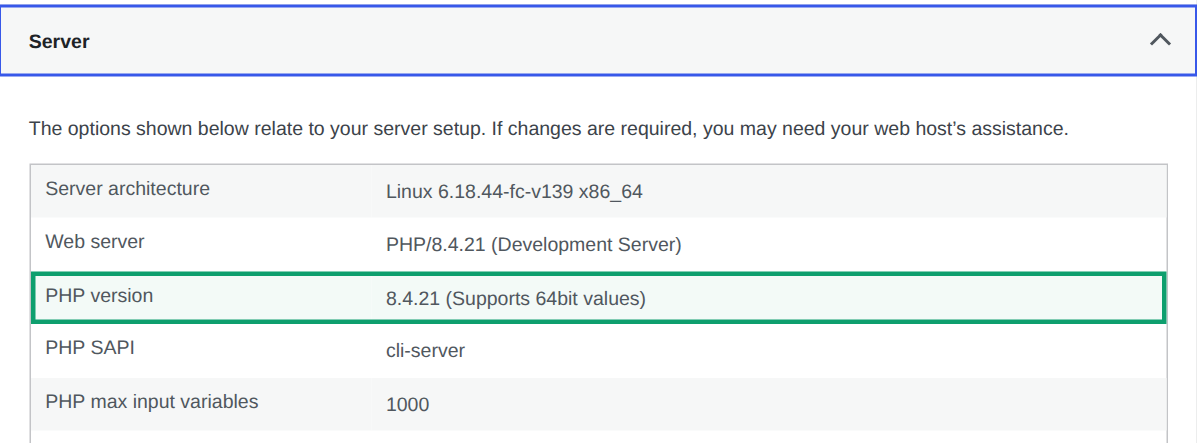
Your WordPress version is shown under Dashboard → Updates. Contact Form 7 6.2 needs both: PHP 8.3 or newer, and WordPress 7.1 or newer.
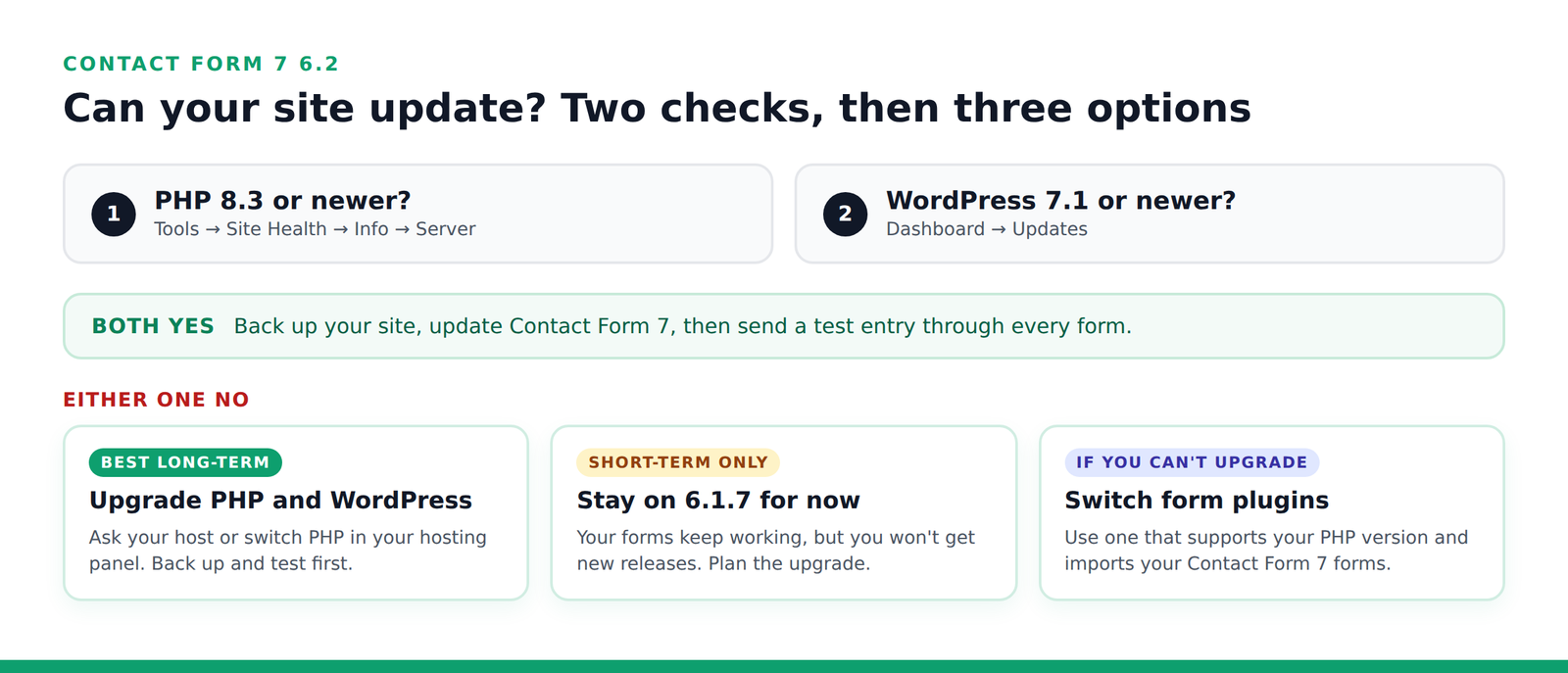
If both checks pass, back up your site, update Contact Form 7, and send a test entry through every form. If either one fails, read on.
Option 1: Upgrade PHP and WordPress (best long-term)
This is the right move for most sites, and not only because of Contact Form 7. According to WordPress’s hosting handbook, PHP 7.4, 8.0 and 8.1 are already end-of-life, and PHP 8.2 reaches end of life on December 31, 2026. Older PHP versions no longer get security fixes.
- Back up your whole site, files and database, before changing anything.
- Update your themes and plugins first. Old themes and plugins are what usually break on a newer PHP version.
- Change the PHP version in your hosting panel. Look for a tool such as “MultiPHP Manager” or “Select PHP Version.” If you can’t find one, ask your host to move your site to PHP 8.3 or newer. WordPress recommends 8.4 or newer.
- Check your site, including your forms, checkout and login. If something breaks, switch PHP back and look for the plugin or theme causing it.
- Update WordPress to 7.1 or newer, then update Contact Form 7 and test every form.
If your host can stage a copy of your site, test the PHP change there first.
Option 2: Stay on Contact Form 7 6.1.7 for now (short-term only)
If you can’t upgrade this week, doing nothing is reasonable for a short time. WordPress has already blocked the update, so your forms keep working on 6.1.7.
Just don’t treat it as permanent. You won’t get new Contact Form 7 releases, and Contact Form 7’s published support policy doesn’t say whether older versions receive security fixes. Use the time to plan Option 1 or Option 3.
Option 3: Switch to a form plugin that supports your setup
If your host can’t offer PHP 8.3, or you’re not ready to move WordPress to 7.1, you can switch form plugins without rebuilding your forms. Custom Contact Forms is free, runs on PHP 7.4 and newer and WordPress 5.0 and newer, and imports your Contact Form 7 forms in one step under Forms → Import. Your original forms are only read, never changed, so you can switch one page at a time.
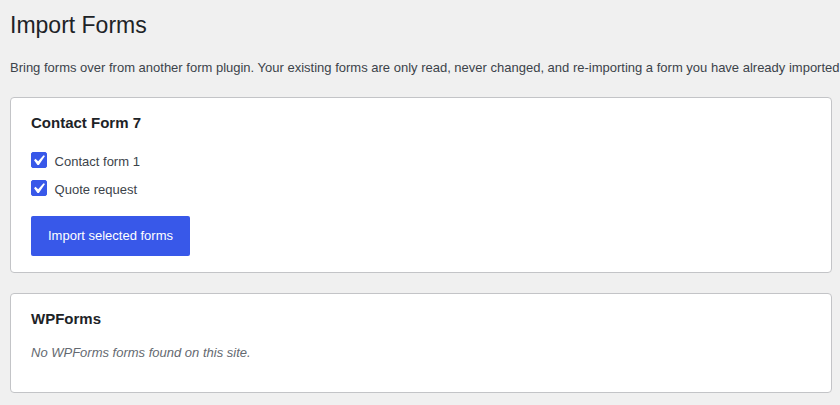
You also get something Contact Form 7 never had: every entry is saved in your WordPress database, not just emailed. For the full step-by-step walkthrough, see Contact Form 7 Doesn’t Save Submissions: How to Keep Every Entry.
Switching plugins doesn’t replace upgrading PHP. An old PHP version is a risk for your whole site, so plan that upgrade either way. Switching just means your forms aren’t the thing holding you back.
Contact Form 7 stopped working after the update?
Since 6.2 came out, the Contact Form 7 support forum has filled up with the same handful of problems. Here’s what people are reporting and what to do about each.
“Composer detected issues in your platform” or a fatal error
A message starting with “Composer detected issues in your platform” usually means the plugin’s code needs a newer PHP version than your site is running: 6.2 ended up on a site without PHP 8.3. Updating Contact Form 7 again won’t fix that. Either move the site to PHP 8.3 or newer (Option 1) or go back to 6.1.7 (Option 2) using the steps below.
If Site Health already shows PHP 8.3 or newer and you still see a fatal error, the forum has reports of conflicts on sites that have their own vendor folder in the WordPress root, and on multisite networks. In that case, go back to 6.1.7 for now and ask your host, or post the full error in the Contact Form 7 support forum.
Contact Form 7 deactivated itself, or the site won’t load
- Check your PHP version first under Tools → Site Health → Info → Server. If it’s below 8.3, reactivating Contact Form 7 6.2 isn’t the fix. Pick one of the three options above.
- Can’t reach the dashboard? When a plugin causes a fatal error, WordPress emails the site admin a link to log in using recovery mode, so you can deactivate the plugin from the dashboard.
- Or deactivate it through your host. In your hosting file manager or over FTP, rename the folder
wp-content/plugins/contact-form-7to something likecontact-form-7-off. WordPress deactivates the plugin and your site loads again.
Forms load but won’t submit, or fields fail validation
Some site owners on PHP 8.3 report that, after updating, forms stopped submitting, date fields started failing validation, or a Contact Form 7 add-on stopped working with the new version. If that’s you:
- Update any Contact Form 7 add-ons you use, such as extensions for styling, conditional fields or extra field types. Add-ons often need their own update to work with a new Contact Form 7 version.
- Test with the add-ons switched off one at a time. If the form works without one, that add-on is the cause, and its author is the one to contact.
- Clear your site cache and test in a private window, so you’re not seeing an old copy of the page.
- Still broken? Post the details in the Contact Form 7 support forum on WordPress.org, and go back to 6.1.7 in the meantime so your forms keep working.
How to go back to Contact Form 7 6.1.7
Earlier versions of Contact Form 7 can be downloaded from its WordPress.org page under Advanced View. Back up your site first, then go to Plugins → Add New → Upload Plugin, upload the 6.1.7 zip and choose Replace current with uploaded. That swaps the plugin files and keeps your forms.
Don’t delete Contact Form 7 from the Plugins screen to do this. Deleting it there removes its saved forms from your database. Afterwards, turn off auto-updates for Contact Form 7 until you’ve decided on Option 1 or Option 3, or the update will come straight back.
Frequently asked questions
Will my Contact Form 7 forms stop working?
Not if WordPress blocked the update. Your site stays on the version it has and your forms keep working. You just won’t receive newer releases until your site meets the new requirements.
Does WordPress itself need PHP 8.3 now?
No. WordPress 7.1 still runs on PHP 7.4 and newer, and recommends PHP 8.4 or newer. The PHP 8.3 requirement is Contact Form 7’s own.
Which PHP version should I move to?
At least 8.3 for Contact Form 7 6.2. If your host offers it and your theme and plugins support it, PHP 8.4 is what WordPress recommends for new sites.
Is it safe to stay on Contact Form 7 6.1.7?
For a short time, it’s a reasonable choice. Longer term, you’re running a version that won’t get new releases, on a PHP version that may not get security fixes either. Treat it as time to plan, not a solution.
Why is Contact Form 7 not working after the update?
The most common reason is that Contact Form 7 6.2 needs PHP 8.3, and the site is running an older version. On sites that do have PHP 8.3, the usual cause is an add-on that hasn’t been updated for 6.2 yet. The section “Contact Form 7 stopped working after the update?” above walks through both.
Does Custom Contact Forms work on PHP 7.4?
Yes. Custom Contact Forms requires PHP 7.4 or newer and WordPress 5.0 or newer, and it’s free on WordPress.org. Saved entries, the Contact Form 7 importer, Mailchimp, webhooks and spam protection are all included. Custom Contact Forms Pro is optional and adds payments, PDF receipts and multi-step forms.
Stuck on Contact Form 7 6.1.7? Download Custom Contact Forms free from WordPress.org and import your Contact Form 7 forms in a few minutes, on the PHP version you have today.
Free on WordPress.org
Never lose another form entry
Custom Contact Forms saves every entry on your site and includes conditional logic, file uploads, a signature field, Mailchimp, webhooks and spam protection, all free.
Get our new form guides by email
Practical guides on forms, email delivery and spam, plus news when Custom Contact Forms gets new features.
We only use your email to send our guides and news. Unsubscribe anytime. Privacy Policy