
Contact Form 7 is one of the most popular plugins in WordPress history, and it does one job well: it turns a form into an email. But it doesn’t keep a copy. Once the email is sent, the message exists only in your inbox. If that email lands in spam, bounces, or never leaves your server, the message is gone.
This isn’t a bug. Contact Form 7’s own documentation says it plainly: it “doesn’t store submitted messages anywhere.” In this guide we’ll cover two ways to make sure you never lose another form entry, including a way to switch that brings your existing Contact Form 7 forms with you in one step.
Why unsaved form entries are a real problem
When a form only sends email, every message depends on a chain of things going right: your server sending the mail, your email provider accepting it, and your inbox not filtering it as spam. WordPress sites are especially prone to email trouble, because many hosts send mail in ways that inbox providers don’t trust.
When one link in that chain breaks, nothing tells you. The visitor sees “Thank you for your message,” you see nothing, and the lead, the quote request or the support question quietly disappears. Without saved entries you also can’t:
- Look up what someone sent last month
- Export your leads to a spreadsheet or CRM
- See how many people actually fill in your forms
Option 1: Add Flamingo to Contact Form 7
Flamingo is a free plugin by the author of Contact Form 7, and it’s the fix Contact Form 7 itself recommends. Install it and it starts saving messages from your Contact Form 7 forms into your WordPress database, listed under a new Inbound Messages screen.
It’s a good choice if you want to keep Contact Form 7 exactly as it is. A few things to know:
- It only saves messages sent after you install it.
- The Subject and From columns rely on Contact Form 7’s default field names (
your-subject,your-name,your-email). If your forms use different names, you add extra settings to each form so Flamingo picks them up. - It’s a message store, not a reporting tool, so you still won’t see how many people view your forms or how many go on to submit them.
Option 2: Switch to a form plugin that saves every entry
If you’d rather have saved entries, reporting and integrations in one plugin, Custom Contact Forms is free and saves every submission by default. The part most people worry about, rebuilding their forms, is handled for you: it imports your Contact Form 7 forms directly.
Step 1: Install Custom Contact Forms
In WordPress, go to Plugins → Add New, search for Custom Contact Forms, then install and activate it. Leave Contact Form 7 active for now. The importer reads your Contact Form 7 forms from the database.
Step 2: Import your Contact Form 7 forms
Go to Forms → Import. Every Contact Form 7 form on your site is listed with a checkbox. Tick the ones you want and click Import selected forms.
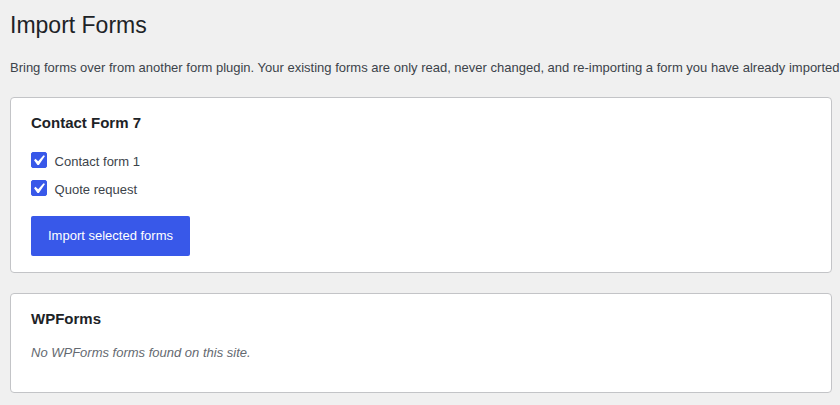
Your original Contact Form 7 forms are only read, never changed, so you can import, compare and switch over at your own pace. Running the import again skips forms you’ve already brought over instead of creating duplicates.
Step 3: Swap the shortcode on your pages
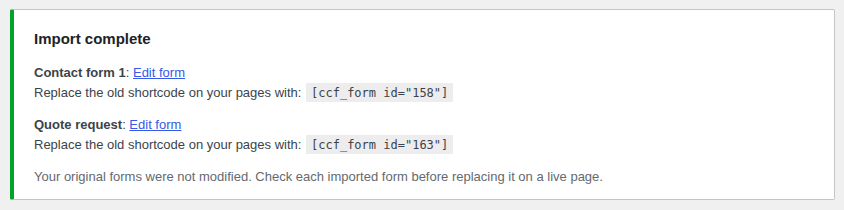
When the import finishes, you get a report with the new shortcode for each form. Open each page that uses a Contact Form 7 shortcode and replace it with the new one, or use the Custom Contact Forms block in the editor.
Step 4: Check the imported form
The importer carries over your field labels, field types, required fields, placeholders, dropdown and radio choices, acceptance checkboxes and your notification email. It uses the label text visitors actually see on your form, so “How did you hear about us?” stays “How did you hear about us?” If something can’t be converted, the report tells you what needs a look.
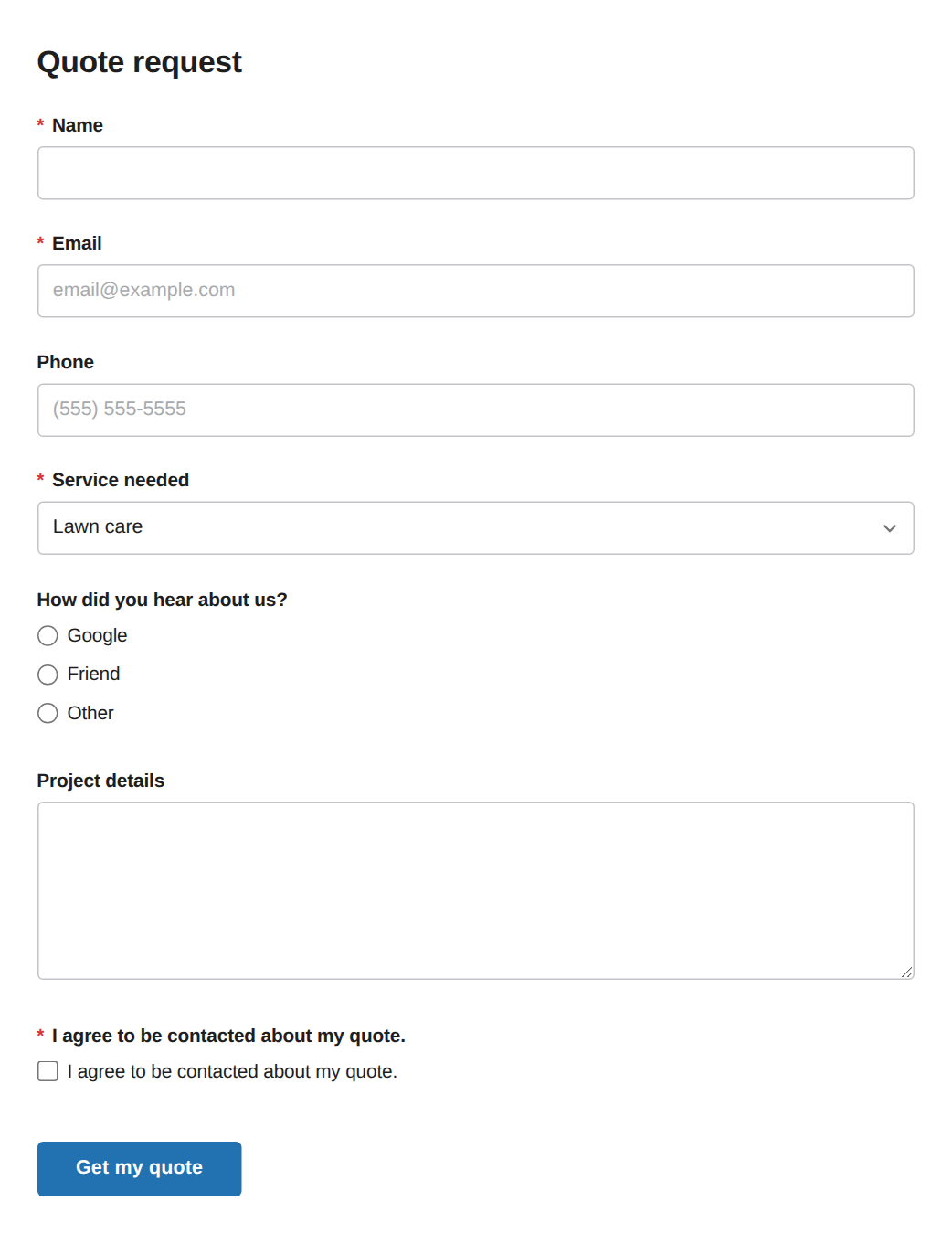
Send yourself a test submission before you replace the form on a busy page. Forms that use unusual Contact Form 7 add-ons or custom tags may need a small adjustment.
Step 5: Every entry, saved
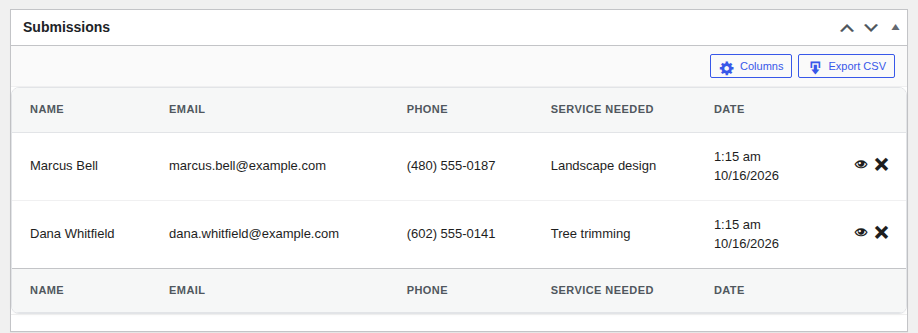
From now on, every submission is stored in your WordPress database as well as emailed to you. Open the form and scroll to Submissions to see every entry, choose which columns to show, view the full details, or click Export CSV for a spreadsheet.
Once every page uses the new shortcodes and your test entries look right, you can deactivate Contact Form 7.
What you get besides saved entries
Saving entries is the reason most people switch, but it isn’t the only thing that changes. All of this is in the free plugin:
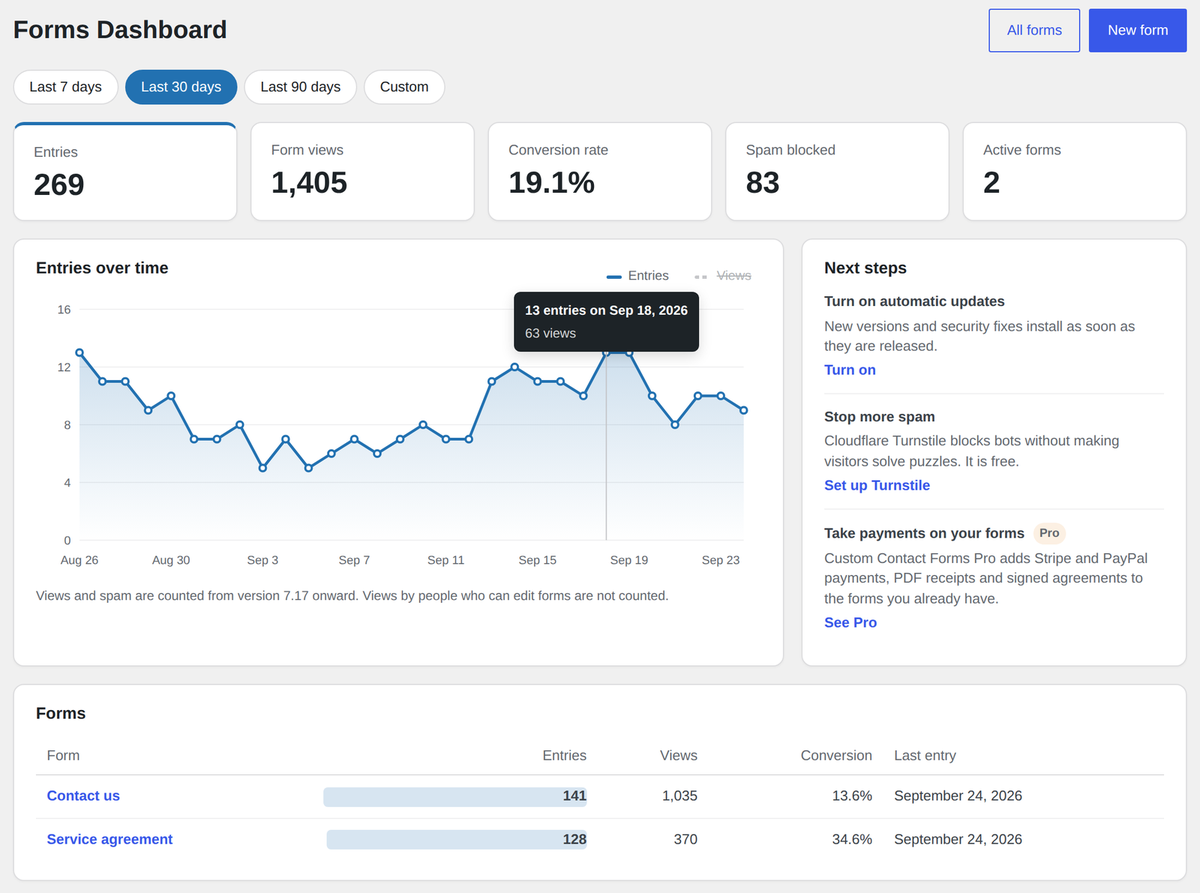
- A Forms dashboard with entries, form views, conversion rate and blocked spam for any date range, plus an optional weekly summary email.
- Mailchimp built in, with double opt-in and a consent checkbox, chosen per form.
- Webhooks that send each entry to Zapier, Make, n8n or your own app.
- Spam protection: Cloudflare Turnstile, hCaptcha, reCAPTCHA, a honeypot and rate limiting, plus Akismet checks with a spam folder, so a real message caught by mistake is never lost.
- A drag-and-drop builder with conditional fields, file uploads and a signature field, so you no longer edit form tags by hand.
Which option should you choose?
- Choose Flamingo if you’re happy with Contact Form 7 and only want a copy of each message in the database.
- Choose Custom Contact Forms if you also want to see how your forms perform, connect them to Mailchimp or Zapier, and build forms visually, without rebuilding the forms you already have.
Either way, do it today. Every form submitted before you start saving entries exists only in your inbox, if it arrived at all.
Frequently asked questions
Does Contact Form 7 save form submissions?
No. Contact Form 7 sends each submission by email and doesn’t store a copy. To keep submissions you need an extra plugin such as Flamingo, or a form plugin that saves entries itself.
Can I recover Contact Form 7 messages that were never delivered?
Unfortunately not from WordPress, because Contact Form 7 never stored them. Check your email’s spam folder, and if you use an SMTP or email-sending service, its logs may show what was sent. From the moment you start saving entries, it won’t happen again.
Does importing change my Contact Form 7 forms?
No. The importer only reads them. Your Contact Form 7 forms keep working until you replace their shortcodes, so you can switch one page at a time.
Will my notification emails still work?
Yes. Your Contact Form 7 mail settings come across as the imported form’s notification, and every submitted field is included. You can add more notifications per form, such as a confirmation email to the person who filled it in.
Can I import from WPForms too?
Yes. The same Forms → Import screen imports WPForms forms.
Is it really free?
Yes. Saved entries, the importer, the dashboard, Mailchimp, webhooks and spam protection are all in the free plugin on WordPress.org, with no submission limits. Custom Contact Forms Pro is optional and adds payments, PDF receipts, multi-step forms and more. See Free vs Pro.
Stop losing form entries. Download Custom Contact Forms free from WordPress.org and import your Contact Form 7 forms in a few minutes.
Free on WordPress.org
Never lose another form entry
Custom Contact Forms saves every entry on your site and includes conditional logic, file uploads, a signature field, Mailchimp, webhooks and spam protection, all free.
Get our new form guides by email
Practical guides on forms, email delivery and spam, plus news when Custom Contact Forms gets new features.
We only use your email to send our guides and news. Unsubscribe anytime. Privacy Policy