
Long forms put people off. A quote form that asks everyone about page counts, domain names, error messages and phone numbers looks like homework, even though each visitor only needs a few of those questions. Conditional logic fixes that: the form shows a question only when an earlier answer makes it relevant, so every visitor sees a short form that fits them.
In this guide we’ll show you how WordPress form conditional logic works, how to set it up step by step without code, and how to get it free when many form plugins charge for it.
What WordPress form conditional logic does
Conditional logic links fields together. You pick a question that controls the form, then tell other fields to appear or disappear depending on the answer. A few everyday examples:
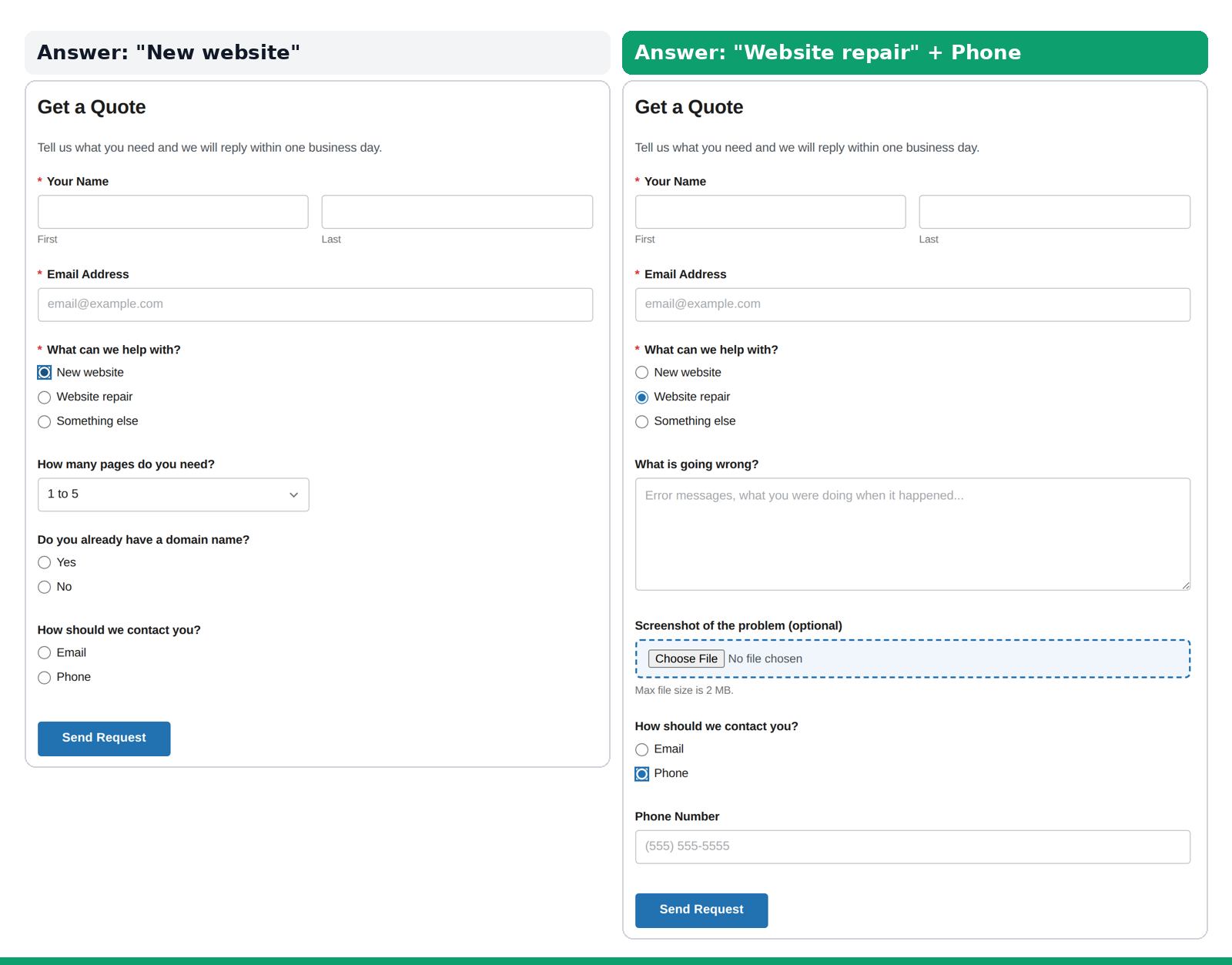
- Quote forms: “New website” shows questions about pages and domains, while “Website repair” asks what’s going wrong.
- Contact preferences: a phone number field appears only when someone chooses “Call me.”
- Event registration: a “Tell us more” box appears only when someone picks “Other” for dietary needs.
- Support requests: an order number field appears only for order problems.
Here’s the same quote form with two different answers. Each visitor only sees the questions that apply to them.
Is conditional logic free in WordPress form plugins?
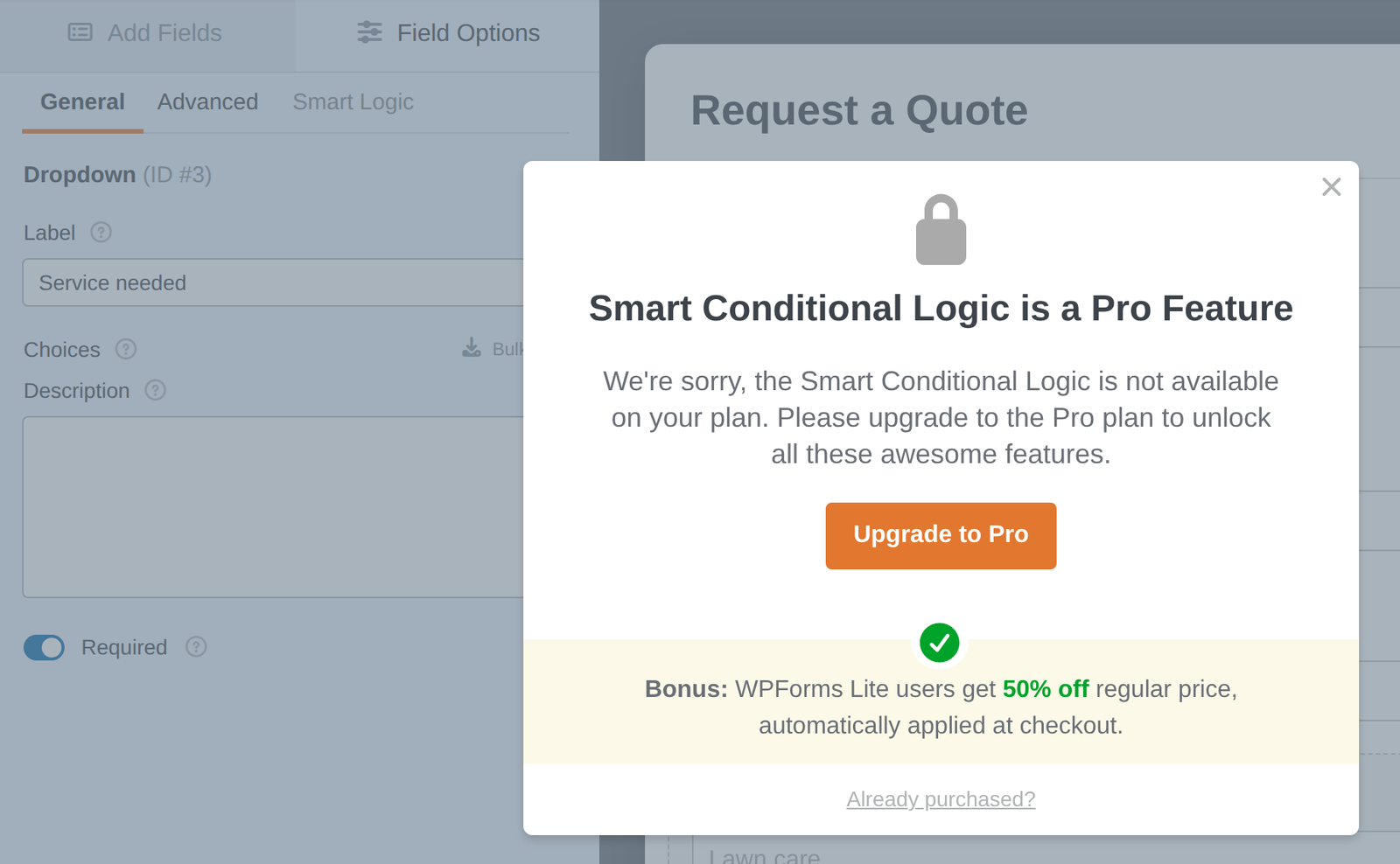
Often not. In WPForms Lite, for example, clicking the Smart Logic tab on a field opens a message saying “Smart Conditional Logic is a Pro Feature,” and conditional logic needs a paid WPForms license.
Custom Contact Forms, the form plugin we make, includes conditional logic in the free version on WordPress.org, along with saved entries, file uploads and a signature field. If you’re comparing the two, see our free WPForms Lite alternative guide.
How to add conditional logic to a WordPress form
Step 1: Install Custom Contact Forms
Go to Plugins → Add New, search for Custom Contact Forms, then install and activate it. Create a new form under Forms, or start from one of the templates under Forms → Templates.
Step 2: Add the question that controls the form
Drag in a Radio Buttons or Dropdown field and add your choices, for example “New website,” “Website repair” and “Something else.”
Then give it a clear Internal Unique Slug in its Basic settings, such as service. Conditions pick the controlling field by its slug, so a name you’ll recognize makes the next step easier.
Step 3: Turn on conditional logic for the field to show or hide
Add the field that should only appear sometimes, such as “How many pages do you need?” Click it in the form, open the Advanced section on the right, and switch on Enable Conditional Logic.
Step 4: Set the rule
The rule reads like a sentence: Show this field if All of these conditions are true, followed by a condition. Choose the controlling field (service), choose is, and type the answer exactly as it appears in your choices: New website.
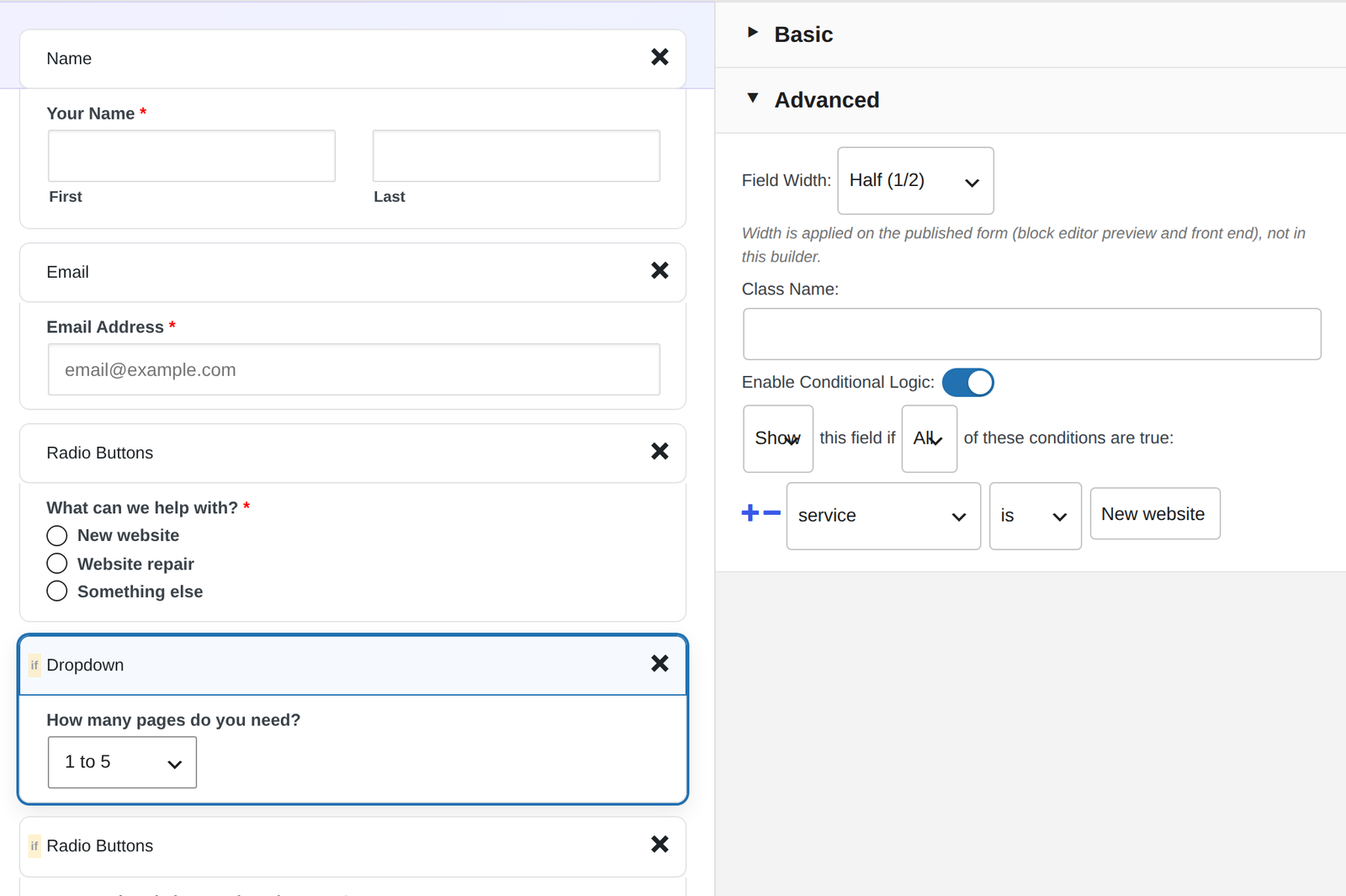
Fields with a rule get a small if badge in the builder, so you can see at a glance which ones are conditional.
Step 5: Combine conditions if you need to
Click the + next to a condition to add another. Then choose how they combine:
- All: every condition must be true. For example, show a field only if the service is “New website” and the budget is over a certain amount.
- Any: one true condition is enough. For example, show a “Tell us more” box if the answer is “Something else” or “Not sure.”
You can also flip the rule from Show to Hide, which is handy when a field should appear for everyone except one answer.
Step 6: Save and test the live form
Click Save Form, add the form to a page with the Custom Contact Forms block or its shortcode, and open the page in a private window. Pick each answer in turn and check the right questions appear and disappear.
The comparisons you can use
| Comparison | Shows the field when… | Example |
|---|---|---|
| is | The answer matches exactly | service is “New website” |
| is not | The answer is anything else | country is not “United States” |
| > | A number is larger | guests > 10 |
| < | A number is smaller | age < 18 |
| contains | The text includes a word | message contains “refund” |
Tips for conditional forms that work smoothly
- Use radio buttons or a dropdown for the controlling question. One clear answer makes the rule simple, and people understand why new questions appear.
- Match the answer text exactly. “New website” and “New Website” aren’t the same to a rule. Copy the choice text straight from the field.
- Put conditional fields right after the question that controls them, so new fields appear where the visitor is looking.
- Hide a whole group at once by adding the rule to a Section Header. Everything in that section appears or disappears together.
- Test every path in a private window before you share the form.
Going further with Custom Contact Forms Pro
Everything above is free. Custom Contact Forms Pro adds two things that make conditional logic even more useful.
Conditional pricing
Pro’s payment fields work with conditional logic too. In this cake order form, choosing “Deliver it to me” reveals a $15 delivery fee and the address fields, and the total updates from $90 to $105. Pick up instead, and the fee disappears from the total.
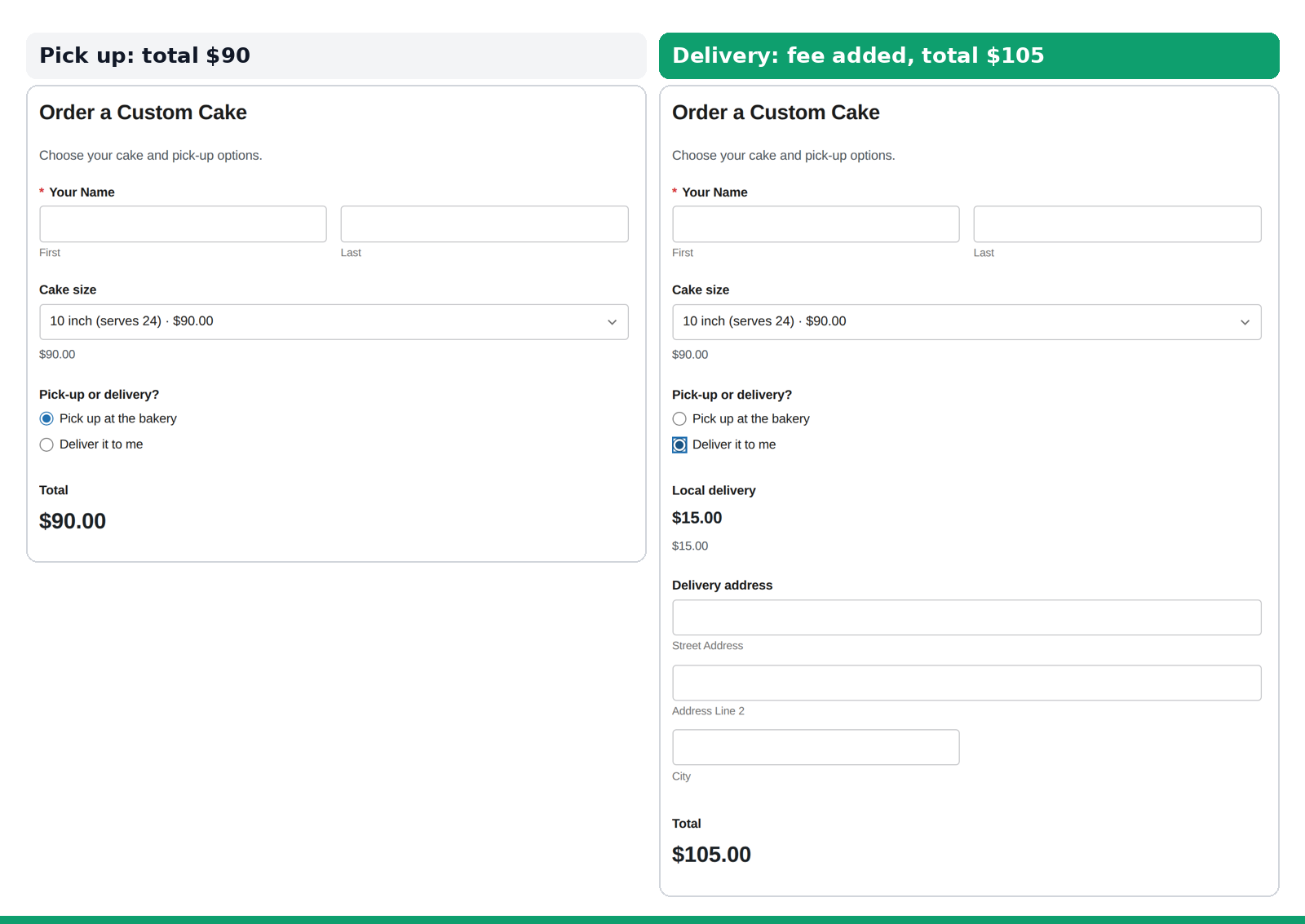
The total is also worked out on your server, not just in the browser, and a priced field that’s hidden by conditional logic is never charged. For more on taking payments, see our guide to payment forms without WooCommerce.
Multi-step forms
Pro can split a long form into steps with a progress bar, and conditional logic works within each step. That’s useful for applications and registrations, where later questions depend on earlier answers.
Frequently asked questions
Do I need to write code for conditional logic?
No. In Custom Contact Forms you set every rule from the form builder with dropdowns and a text box.
Is conditional logic free in Custom Contact Forms?
Yes. Conditional logic is part of the free plugin on WordPress.org. Pro adds conditional pricing on payment fields and multi-step forms.
Can I show a field based on more than one answer?
Yes. Add more conditions with the + button and choose All (every condition must match) or Any (one is enough).
Can I hide a whole section of a form?
Yes. Add the rule to a Section Header field and everything in that section shows or hides together.
Does WPForms Lite have conditional logic?
No. WPForms Lite shows “Smart Conditional Logic is a Pro Feature” when you open the Smart Logic tab. It needs a paid WPForms license.
Build smarter forms for free. Download Custom Contact Forms from WordPress.org and add conditional logic to your first form in a few minutes, no code and no paid plan.
Free on WordPress.org
Never lose another form entry
Custom Contact Forms saves every entry on your site and includes conditional logic, file uploads, a signature field, Mailchimp, webhooks and spam protection, all free.
Get our new form guides by email
Practical guides on forms, email delivery and spam, plus news when Custom Contact Forms gets new features.
We only use your email to send our guides and news. Unsubscribe anytime. Privacy Policy