
When you’re hiring, “email us your resume” sounds simple until the applications start arriving. Some people forget the resume, some send it as a photo, some leave out the one thing you needed to know, and every application lands in a different format in an inbox you have to dig through later.
A job application form on your own website fixes that. Every applicant answers the same questions, uploads their resume in a format you can open, and signs to confirm their details, and every application is saved in WordPress. In this guide we’ll build one step by step, for free.
What a good job application form includes
- Contact details: name, email and phone number.
- The position: a dropdown, so every application is labeled with the job it’s for.
- Screening questions: the few things that decide whether someone fits, asked only for the roles where they matter.
- Availability: when they can work and when they could start.
- A resume upload: limited to file types you can open, with a sensible size limit.
- A declaration and signature: the applicant confirms their information is true.
Keep it to what you actually need to decide who to interview. Shorter applications get finished more often, and collecting less personal information means less to protect.
How to create a WordPress job application form
Step 1: Install Custom Contact Forms
Go to Plugins → Add New, search for Custom Contact Forms, then install and activate it. Everything in steps 1 to 7 is in the free plugin.
Step 2: Create the form and add sections
Create a new form called “Job Application” under Forms. Add a Section Header for each part of the application, such as “About you,” “The position,” “Resume and cover letter” and “Declaration.” Headings break a long form into chunks that feel quicker to fill in.
Step 3: Add contact details and the position
Add Name, Email and Phone fields and mark them required. Then add a Dropdown called “Which position are you applying for?” with one choice per open role. In its Basic settings, give it the slug position. You’ll use it in the next step.
Step 4: Show screening questions only for the right role
Some questions only matter for one job. A delivery driver needs a valid license, an office assistant doesn’t. Instead of asking everyone, use conditional logic, which is free in Custom Contact Forms.
Add a Radio Buttons field, “Do you have a valid driver’s license?”, with Yes and No. Click it, open Advanced, switch on Enable Conditional Logic, and set: Show this field if All of these conditions are true, position is Delivery Driver. Do the same for any other role-specific question, such as years of driving experience.
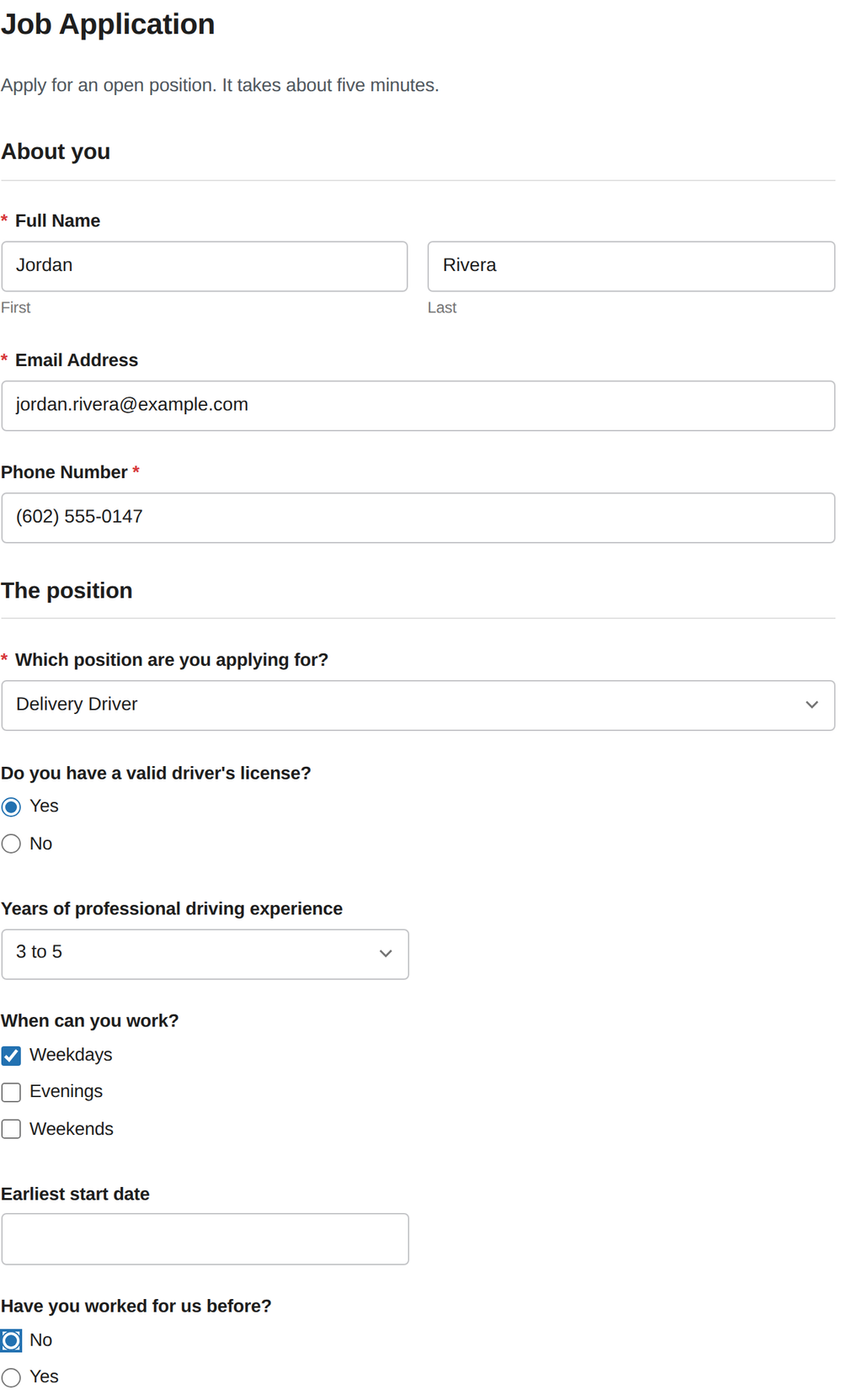
You can use the same trick for follow-ups. In our example, “Have you worked for us before?” reveals “When, and in which role?” only when someone answers Yes. For the full walkthrough, see our guide to WordPress form conditional logic.
Step 5: Add availability and a start date
Add a Checkboxes field, “When can you work?”, with options such as Weekdays, Evenings and Weekends. Then add a Date field for “Earliest start date.” In the date field’s settings you can turn off the time so applicants only pick a day.
Step 6: Add the resume upload
Add a File Upload field called “Resume (PDF or Word)” and mark it required. In its settings:
- Allowed File Extensions:
pdf, doc, docx. That keeps out photos and files you can’t open. - Max File Size (in MB): 5 is plenty for a resume. Your web host’s own upload limit also applies, so if uploads fail, ask your host what it is.
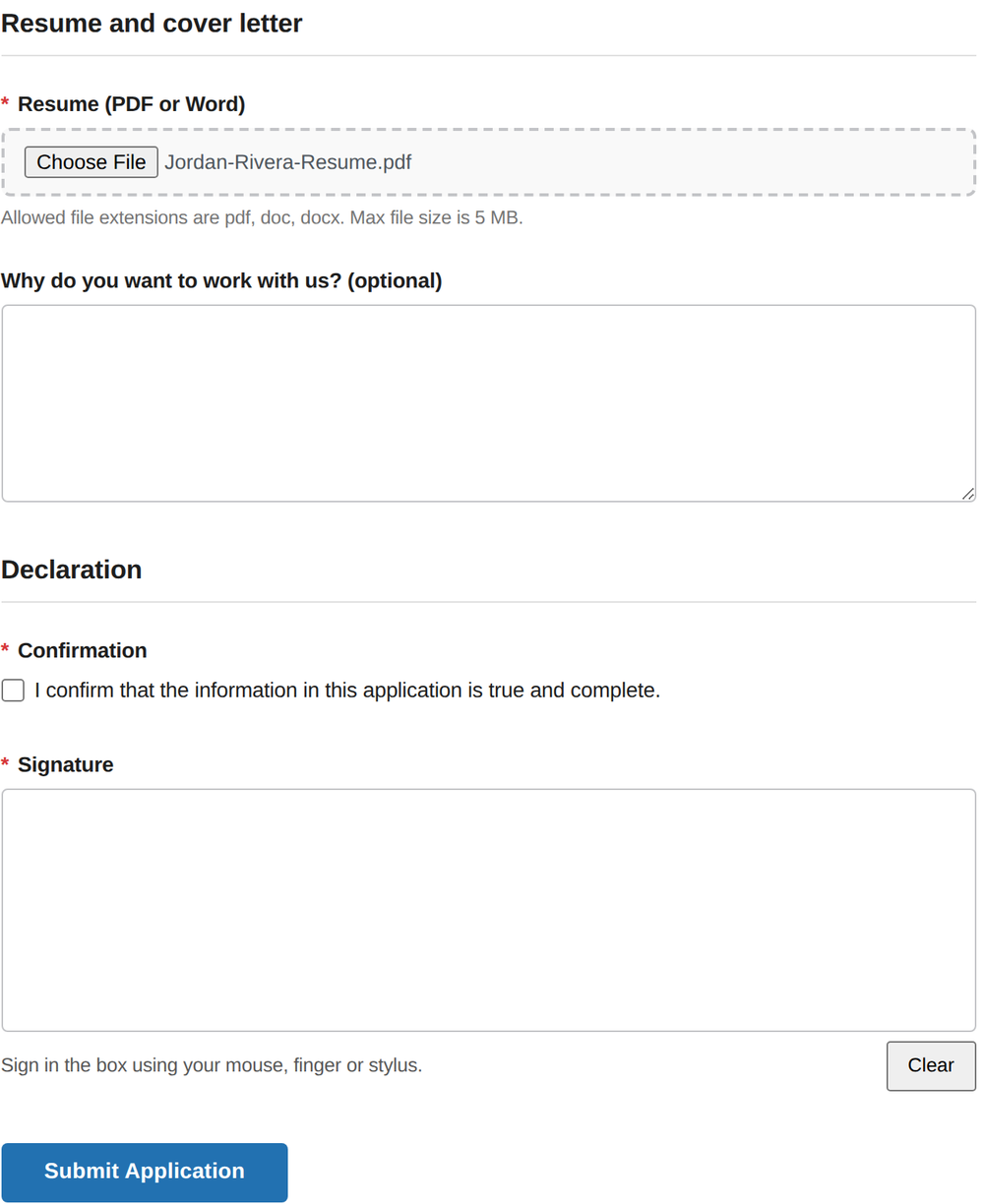
The form tells applicants the allowed types and size right under the field. Add an optional Paragraph Text field for a short cover letter, such as “Why do you want to work with us?”
Step 7: Add a declaration and signature
Finish with a required Checkboxes field containing one option, “I confirm that the information in this application is true and complete,” followed by a required Signature field. Applicants sign with a mouse, finger or stylus, and the signature is saved with the application.
Step 8: Send applications to your hiring manager
Open the form’s notification settings and set the email address that should receive applications. Set Include File Uploads to Yes so the resume arrives as an attachment. You can add a second notification for a different person, such as the manager for a specific location.
Step 9: Add the form to your Careers page
Create a page such as “Careers” or “Join our team,” describe your open roles, and add the Custom Contact Forms block. Then submit a test application with a sample resume to check the whole flow.
Where your applications are saved
Every application is saved in your WordPress dashboard under Forms, whether or not the notification email arrives. Uploaded resumes are stored in your WordPress Media Library and linked from each application, and you can export all applications to CSV for a spreadsheet. If an email ever goes missing, the application is still there. Our guide to forms not sending email explains why that matters.
Going further with Custom Contact Forms Pro
The free form above covers most small businesses. For longer applications, Custom Contact Forms Pro adds:
- Multi-step forms: split the application into steps, such as About you, Experience and Authorization, with a progress bar. Conditional questions still work inside each step.
- A consent field with a permanent record: show authorization text, such as permission to verify employment history and references, and keep a copy of the exact wording each applicant agreed to, even if you change it later.
- PDF downloads: download any application as a PDF, with the signature included, to print or share with a hiring manager.
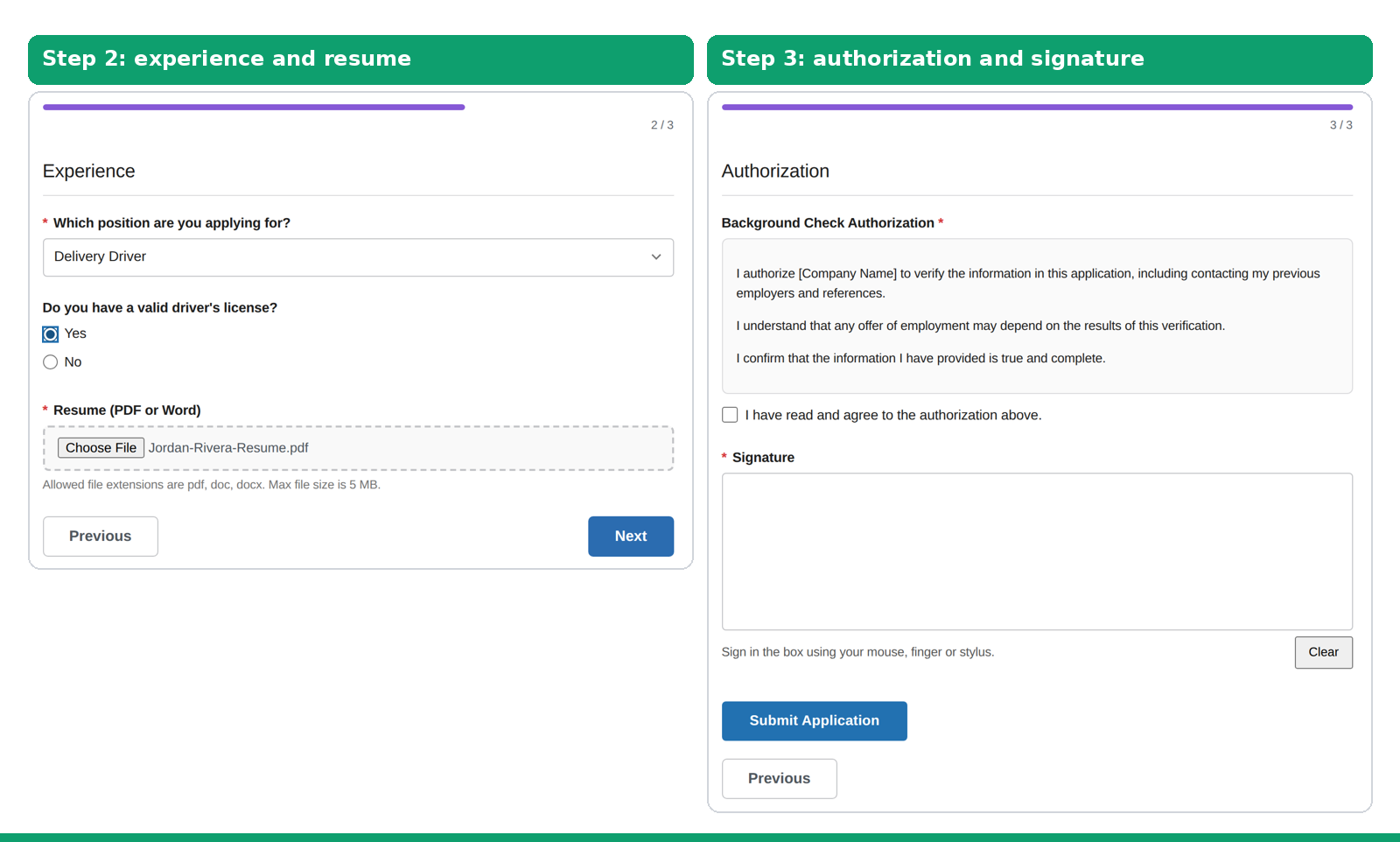
Whatever wording you use for an authorization, have it checked for your location. Hiring rules, including what you can ask and how background checks must be disclosed, vary by state and country. We’re not lawyers, and this isn’t legal advice.
Frequently asked questions
Can applicants upload a resume with the free plugin?
Yes. The File Upload field is free in Custom Contact Forms, with settings for allowed file types and maximum size.
Will I get the resume by email?
Yes, if you set Include File Uploads to Yes in the form’s notification. The resume is also saved with the application in WordPress either way.
Can I ask different questions for different jobs?
Yes. Use conditional logic to show questions only when a specific position is selected. It’s included free.
Can I export all applications?
Yes. Export the form’s entries to CSV and open them in Excel or Google Sheets.
What shouldn’t I ask on a job application?
Rules vary by location, so check what applies to you. As a general habit, only ask what you need to decide who to interview, and don’t collect sensitive details like government ID numbers on a public form.
Start hiring from your own website. Download Custom Contact Forms free from WordPress.org and build your job application form today, with resume uploads, screening questions and a signature included.
Free on WordPress.org
Never lose another form entry
Custom Contact Forms saves every entry on your site and includes conditional logic, file uploads, a signature field, Mailchimp, webhooks and spam protection, all free.
Get our new form guides by email
Practical guides on forms, email delivery and spam, plus news when Custom Contact Forms gets new features.
We only use your email to send our guides and news. Unsubscribe anytime. Privacy Policy