
You added a file upload field to your Contact Form 7 form, and something isn’t right. Maybe visitors see an error when they pick a PDF. Maybe the form sends, but the email arrives with no attachment. Or the file simply vanished and you can’t find it anywhere on your site.
Each of these has a specific cause, and most take a minute to fix once you know where to look. In this guide we’ll go through every common reason for a Contact Form 7 file upload not working, show you the exact fix for each, and explain what happens to uploaded files behind the scenes. We tested everything here with Contact Form 7 6.2.3.
filetypes: and limit: to the file form-tag, because by default it only accepts images, audio and video up to 1 MB. If the email arrives without the file, put the field’s mail-tag (like [your-file]) in the File attachments box on the Mail tab. And if you need to keep uploaded files, know that Contact Form 7 deletes them after sending the email.Contact Form 7 file upload not working? Find your error message
Contact Form 7 shows a different message for each kind of upload problem. Match what you see to the fix:
| What you see | What it means | Fix |
|---|---|---|
| You are not allowed to upload files of this type. | The file type isn’t on the allowed list | Fix 1 |
| The uploaded file is too large. | The file is over the field’s size limit | Fix 2 |
| There was an error uploading the file. | PHP on your server rejected the upload | Fix 3 |
| There was an unknown error uploading the file. | Contact Form 7 couldn’t save the file to its temporary folder | Fix 4 |
| No error, but no attachment in the email | The file isn’t added to the Mail tab | Fix 5 |
Fix 1: “You are not allowed to upload files of this type”
This is the most common one, and it catches almost everyone collecting resumes or documents. If you don’t list file types on the field, Contact Form 7 only accepts images, audio and video. A PDF or Word document is rejected straight away.
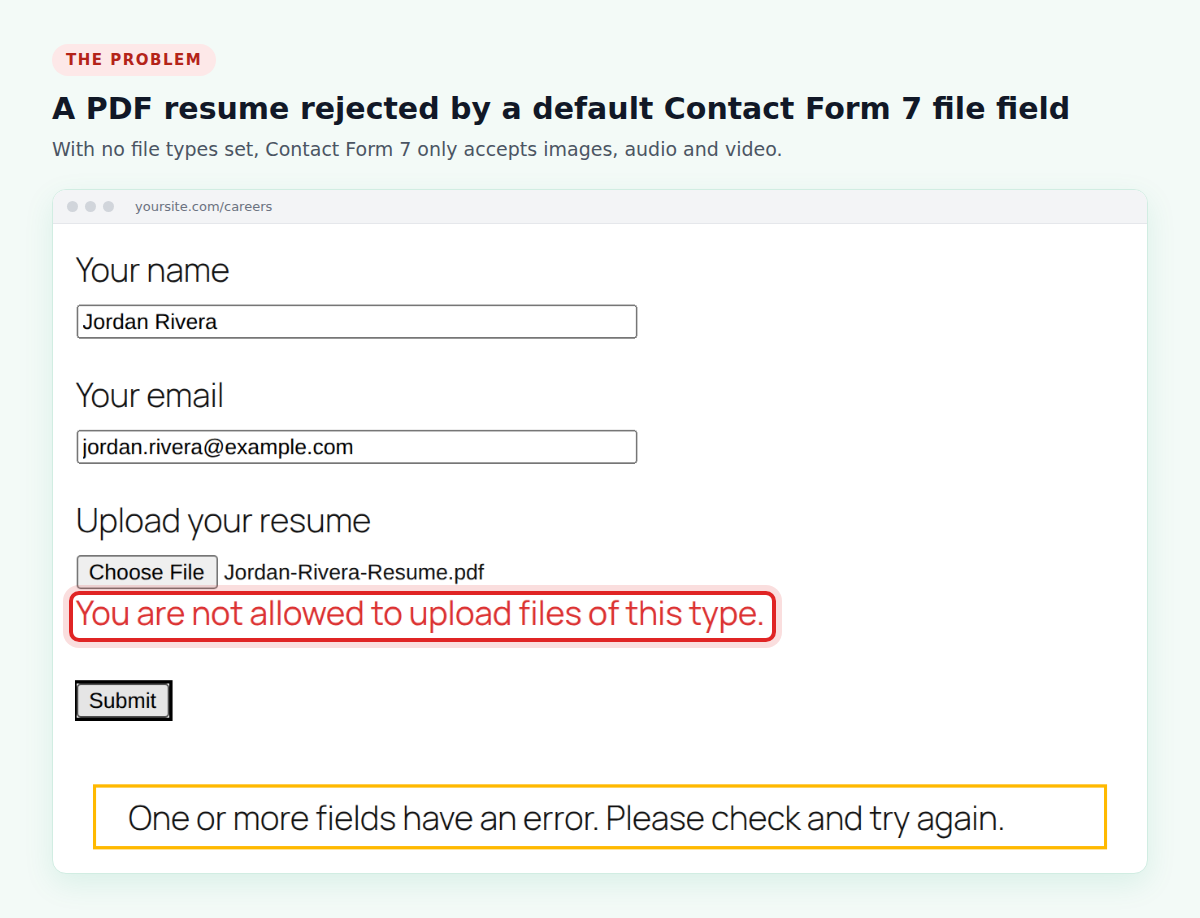
[file* your-file] field rejecting a PDF resume.To fix it, open your form, go to the Form tab, and add the filetypes: option to the file form-tag, with each type separated by a vertical bar. For resumes and documents:
[file* your-file limit:5mb filetypes:pdf|doc|docx]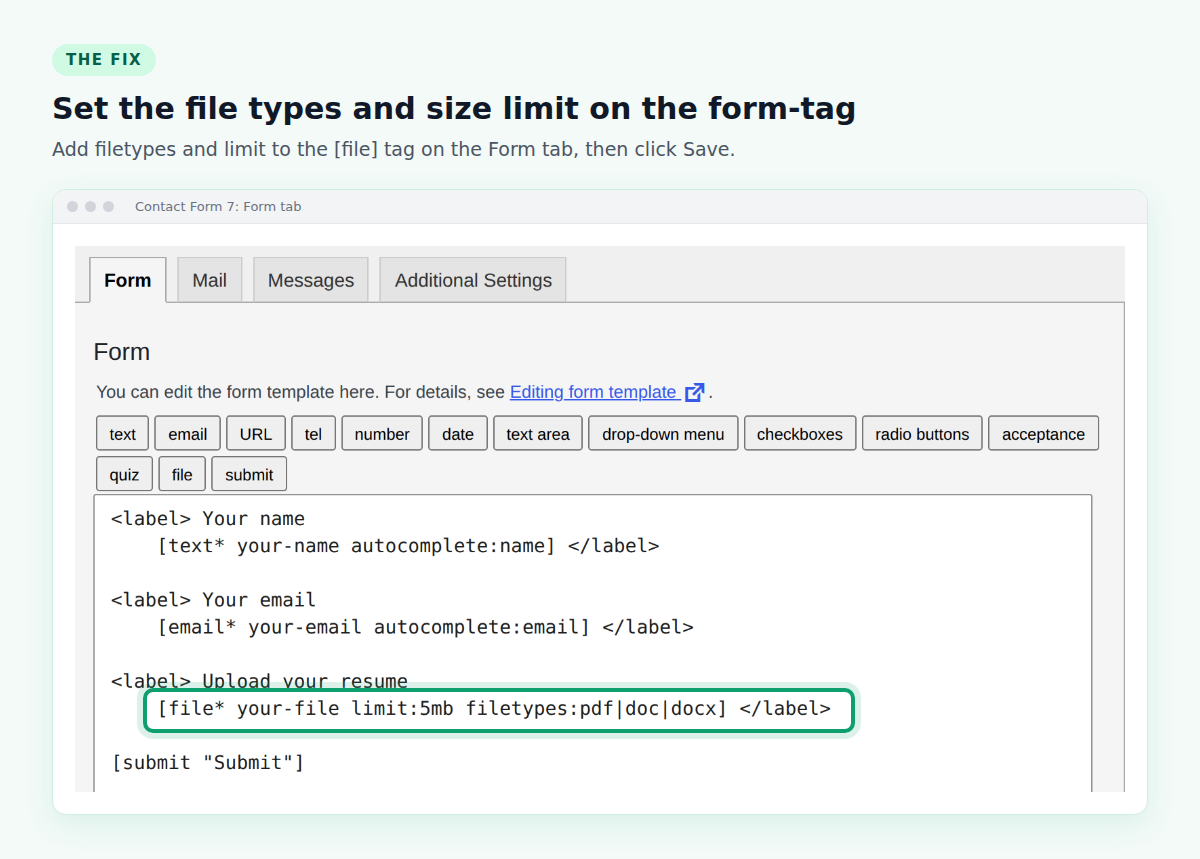
Only list the types you actually need. Accepting fewer file types is safer for your site.
Fix 2: “The uploaded file is too large”
Contact Form 7’s default size limit is 1 MB, which is smaller than many PDFs and almost every phone photo. Raise it with the limit: option on the same form-tag, using kb or mb, for example limit:5mb.
Don’t set it too high. The file travels as an email attachment, and Contact Form 7’s own documentation notes a 25 MB limit on total attachment size. Many email providers reject large attachments well before that.
Fix 3: “There was an error uploading the file”
This message means PHP on your server rejected the upload before Contact Form 7 could handle it. The usual reason is that the file is bigger than your hosting’s upload limit, which overrides whatever limit: you set in the form.
To check your limit, go to Media → Add New Media File in WordPress. It shows “Maximum upload file size.” If that’s smaller than the files people send you, ask your host to raise upload_max_filesize and post_max_size. Most hosts can do it in a few minutes.
Fix 4: “There was an unknown error uploading the file”
Contact Form 7 moves each upload into a temporary folder, wp-content/uploads/wpcf7_uploads, before attaching it to the email. This error appears when it can’t write to that folder, usually because of folder permissions or a full disk.
Ask your host to check that WordPress can write to wp-content/uploads and that your hosting account has free space. A quick test: if you also can’t upload images in Media → Add New Media File, the problem is the folder, not Contact Form 7.
Fix 5: The form sends, but the email has no attachment
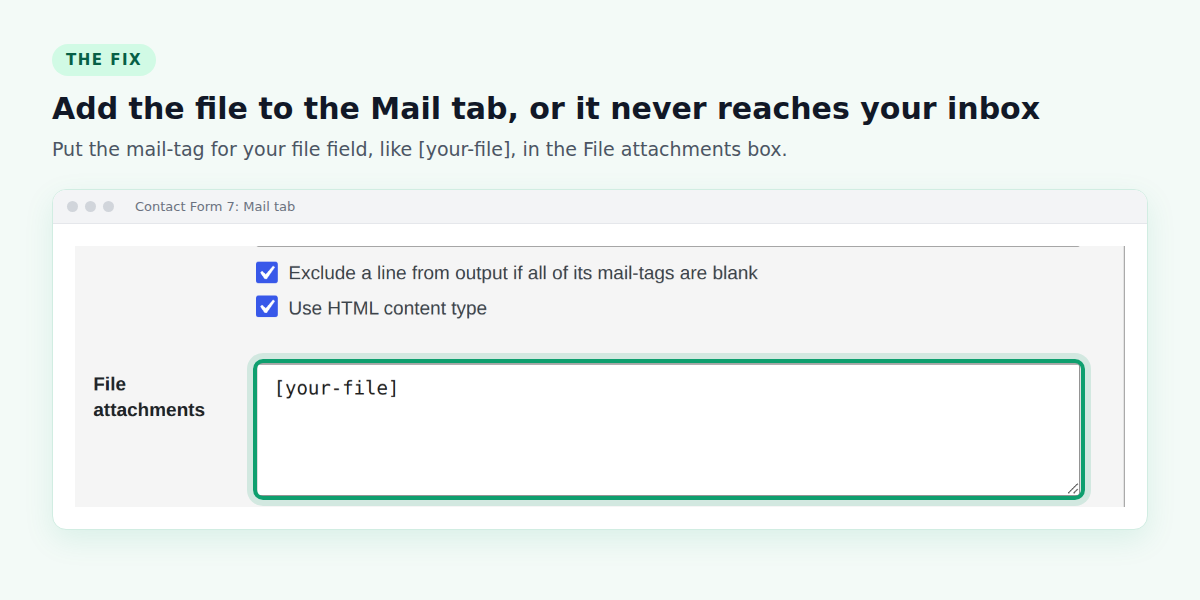
Adding a file field to the form isn’t enough on its own. Contact Form 7 only attaches the file if you also list it on the Mail tab:
- Open the form and go to the Mail tab.
- Scroll down to File attachments.
- Enter the field’s mail-tag, such as
[your-file]. Use the mail-tag, not the whole form-tag with its options. - Click Save.
If the attachment is set up correctly and the email still doesn’t arrive, the problem is usually email delivery, not the upload. Large attachments make that more likely. Our guide to contact forms not sending email walks through the fixes.
Where did the uploaded file go?
This surprises a lot of people: Contact Form 7 doesn’t keep uploaded files. It stores each one in the temporary folder only long enough to attach it to the email, then deletes it. There’s no copy in your Media Library and no list of uploads in your dashboard.
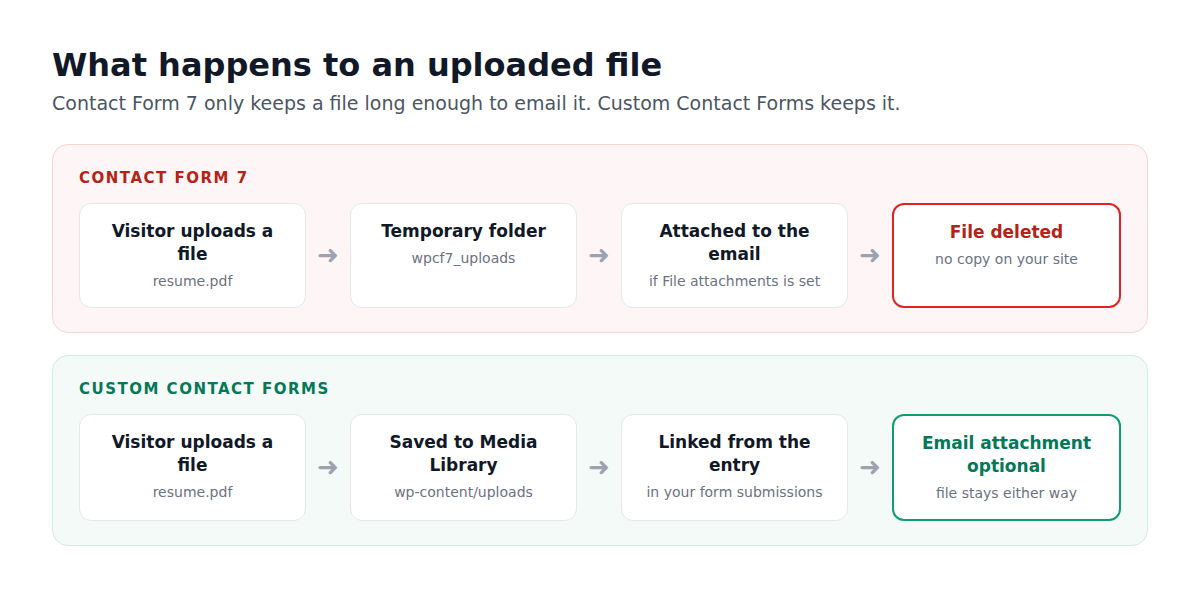
So if the email fails, lands in spam, or the attachment gets stripped by your email provider, the file is gone for good. The same goes for the message itself, since Contact Form 7 doesn’t save submissions either. We cover that in Contact Form 7 doesn’t save submissions.
Can Contact Form 7 accept more than one file?
Each file field takes one file. To collect several, add a file field for each one, then list all their mail-tags side by side in the File attachments box, like [your-file][your-file-2]. Keep the total size in mind, since every file goes into the same email.
An easier way: keep every upload with Custom Contact Forms
If you’d rather not depend on an email to keep your files, Custom Contact Forms is a free form plugin that saves every upload on your site:
- Files are kept. Each upload is saved to your WordPress Media Library and linked from the submission, so it’s there even if the email never arrives.
- Every submission is saved in your dashboard, and you can export them to CSV.
- Simple settings, no form-tags. The File Upload field has boxes for Allowed File Extensions and Max File Size, and the form tells visitors the limits right under the field.
- Attachments are optional. Set “Include File Uploads” to Yes in the notification to get the file by email too.
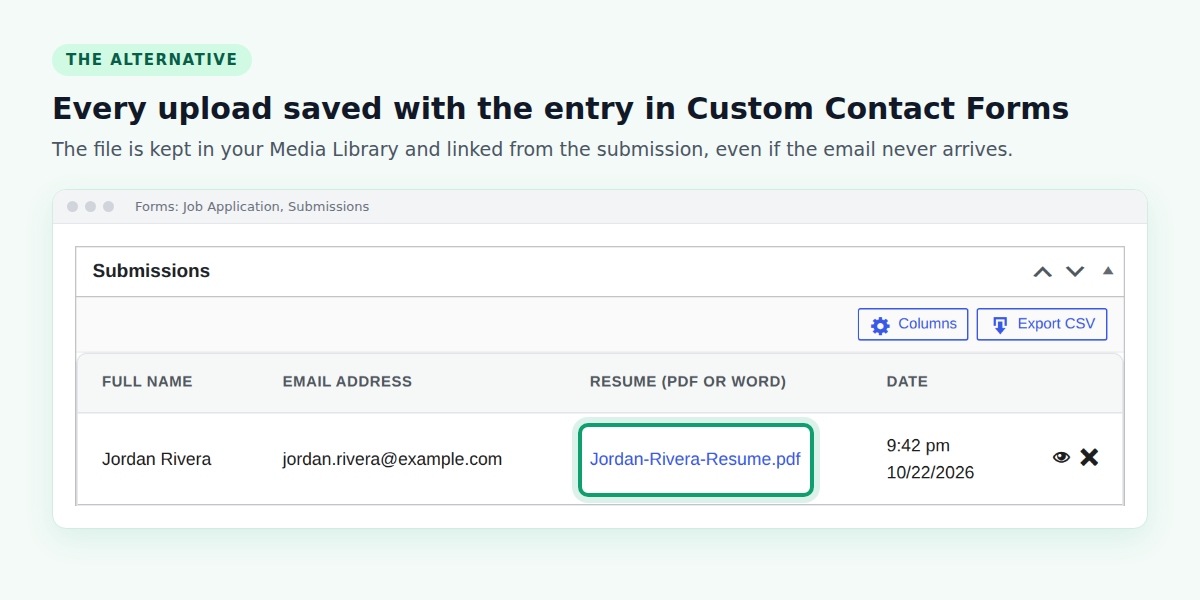
Switching doesn’t mean starting over. Go to Forms → Import to bring your Contact Form 7 forms across, including file fields. After importing, set the allowed file types and size on each file field. For a complete example, see our guide to building a WordPress job application form with resume uploads.
Frequently asked questions
Why does Contact Form 7 reject PDF files?
Without a filetypes: option, Contact Form 7 only accepts images, audio and video. Add filetypes:pdf (plus any other types you need) to the file form-tag.
What is Contact Form 7’s default file size limit?
1 MB. Change it with the limit: option, for example limit:5mb. Your server’s own upload limit still applies on top of it.
Where does Contact Form 7 store uploaded files?
Only briefly, in wp-content/uploads/wpcf7_uploads. Contact Form 7 deletes each file after attaching it to the email, so the email is the only copy.
Why is my Contact Form 7 attachment missing from the email?
The file field’s mail-tag isn’t in the File attachments box on the Mail tab. Add it, such as [your-file], and save the form.
Is there a form plugin that keeps uploaded files?
Yes. Custom Contact Forms is free and saves every uploaded file to your Media Library, linked from the saved submission.
Never lose an uploaded file again. Download Custom Contact Forms free from WordPress.org, import your Contact Form 7 forms, and keep every file and submission on your own site.
Free on WordPress.org
Never lose another form entry
Custom Contact Forms saves every entry on your site and includes conditional logic, file uploads, a signature field, Mailchimp, webhooks and spam protection, all free.
Get our new form guides by email
Practical guides on forms, email delivery and spam, plus news when Custom Contact Forms gets new features.
We only use your email to send our guides and news. Unsubscribe anytime. Privacy Policy