
WordPress contact form not sending email? Someone fills in your form, sees “Thank you,” and waits for a reply that never comes, because the email never reached you. If that sounds familiar, you’re not alone. It’s one of the most common problems in the support forums of every popular form plugin, and it usually has nothing to do with the form itself.
In this guide we’ll explain where form emails go missing, how to find out which step is failing, and how to fix it for good. We’ll also show you how to make sure that even when an email does fail, you never lose the message inside it.
Why WordPress form emails go missing
A form email has to get through several steps before it reaches your inbox, and it can fail at most of them without anyone noticing.
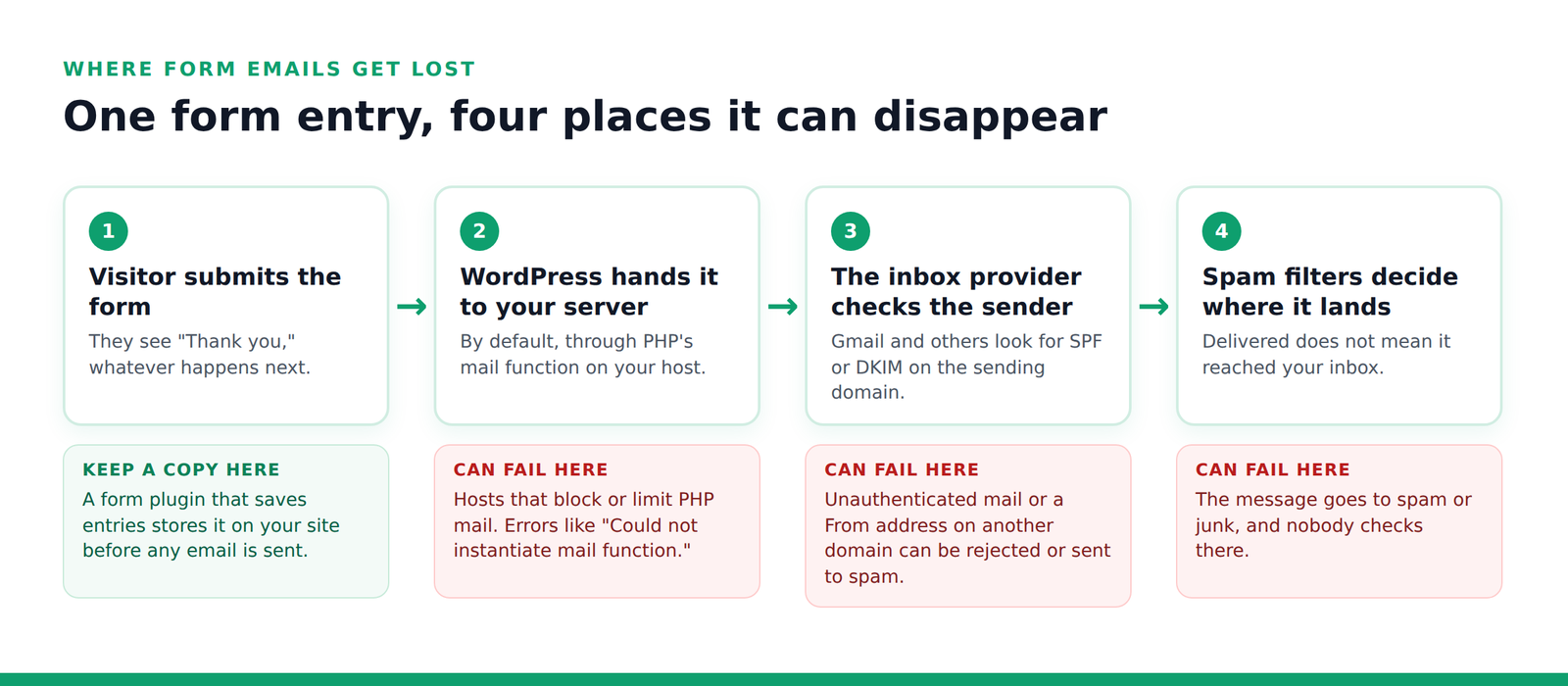
- Your host’s mail function. By default, WordPress sends email with PHP’s built-in mail function on your web server. Some hosts block or limit it, and the email fails before it leaves.
- “Sent” doesn’t mean “delivered”. WordPress only knows whether your server accepted the email. Its own developer documentation says a successful send “does not automatically mean that the user received the email successfully.”
- Missing authentication. Since February 2024, Google requires everyone who sends to Gmail to set up SPF or DKIM authentication for their sending domain. Google says messages that aren’t authenticated “might be marked as spam or rejected.” Mail sent straight from a shared web server often has neither.
- The wrong “From” address. Many forms are set up to send the notification “from” the visitor’s email address. To Gmail or Outlook, that looks like your server pretending to be someone else’s email account, which is exactly what spam filters look for.
How to fix a WordPress contact form that isn’t sending email
Work through these in order. The first two take a minute and tell you where the problem is.
Step 1: Check the obvious first
- Look in your spam or junk folder, and search your inbox for your site’s name.
- Open the form’s notification settings and check the address the email is sent to. A typo or an old address is more common than you’d think.
- Make sure the notification is switched on.
Step 2: Send a test email and check for errors
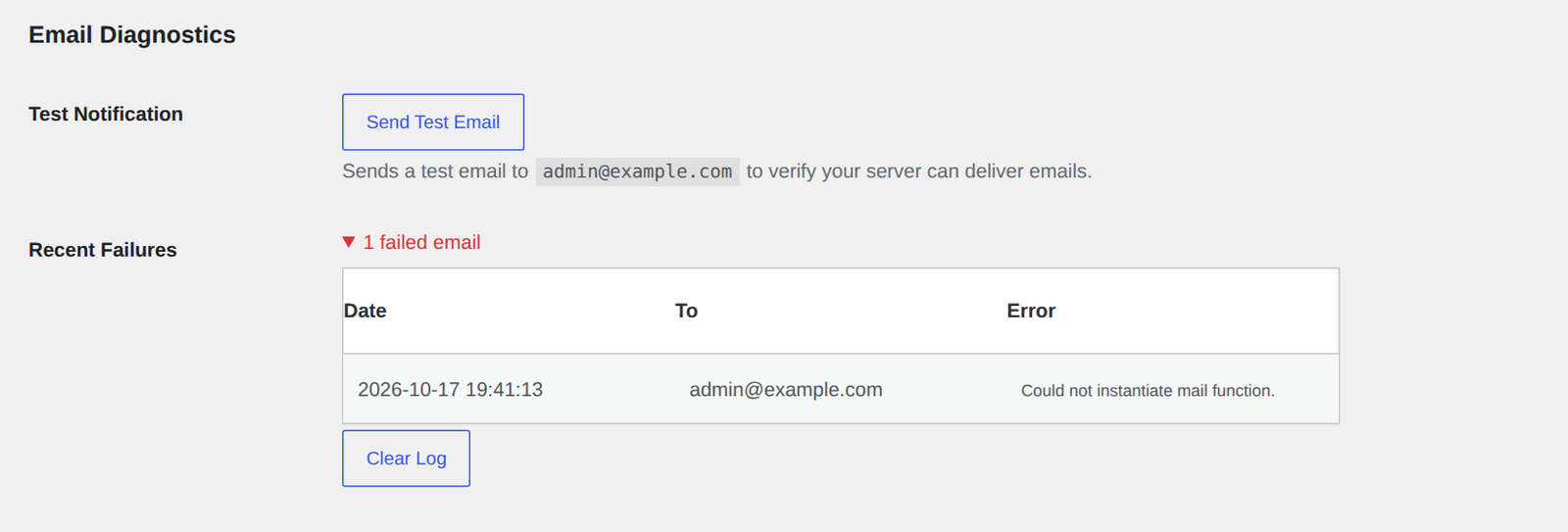
A test email tells you whether your server can send mail at all. In Custom Contact Forms, go to Forms → Settings and scroll to Email Diagnostics. Click Send Test Email, and any email WordPress fails to send is recorded under Recent Failures with the error message.
What the result tells you:
- An error appears, such as “Could not instantiate mail function”: your server can’t send mail the way WordPress is trying to. Go to Step 4.
- No error, but the test email never arrives or lands in spam: the email left your server and was filtered or rejected along the way. Steps 3 and 4 fix this.
- The test arrives, but form notifications don’t: compare the form’s notification settings with Step 3, especially the From address.
The failure log records any email WordPress fails to send, not only form notifications, so it’s useful for password resets and other site emails too. It can’t see what happens after your server hands the email off, which is why a test email to a real inbox matters.
Step 3: Send from your own domain, reply to the visitor
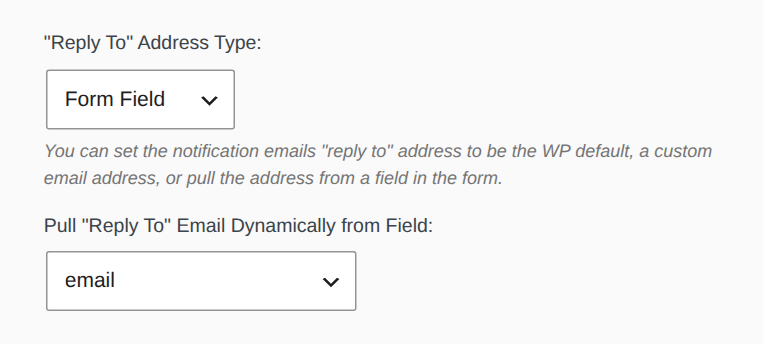
The notification’s “From” address should be an address on your own website’s domain. WordPress’s default, wordpress@yourdomain.com, is fine. To reply straight to the person who filled in the form, set the Reply-To to the form’s email field instead. Hitting Reply then goes to them, and your email isn’t pretending to come from their account.
If you use Contact Form 7 and see the warning “Sender email address does not belong to the site domain,” this is the problem it’s pointing at. Change the From address in the form’s Mail tab to an address on your domain, and put the visitor’s email in a Reply-To header instead.
Step 4: Send through SMTP with an email service
This is the fix that solves most cases for good. Instead of your web server sending mail on its own, WordPress logs in to a real email service and sends through it, the same way your email app does.
- Choose where to send from. This can be your own email provider, such as Google Workspace or Microsoft 365, or a transactional email service built for website mail.
- Install a free SMTP plugin from WordPress.org, such as WP Mail SMTP, FluentSMTP or Post SMTP, and connect it to that service using the details the service gives you.
- Add the DNS records the service asks for. These are usually SPF and DKIM records added where you manage your domain. They prove to Gmail and others that the service is allowed to send for your domain.
- Send another test email and check that it reaches your inbox, not spam.
Every form plugin that uses WordPress’s standard email function, including Custom Contact Forms, sends through the SMTP plugin automatically once it’s set up. You don’t need to change anything in your forms.
Step 5: Keep a copy of every entry, whatever happens to the email
Even a well-configured site has the occasional email that bounces or gets filtered. The only way to be sure you never lose a message is to save every entry on your own site, so the email is just a notification and not the only copy.
Not every form plugin does this. Contact Form 7 doesn’t save submissions, and WPForms Lite doesn’t store entries in WordPress either. Custom Contact Forms saves every entry in your WordPress database by default, for free, before any email is sent. Open a form and scroll to Submissions to see them all.
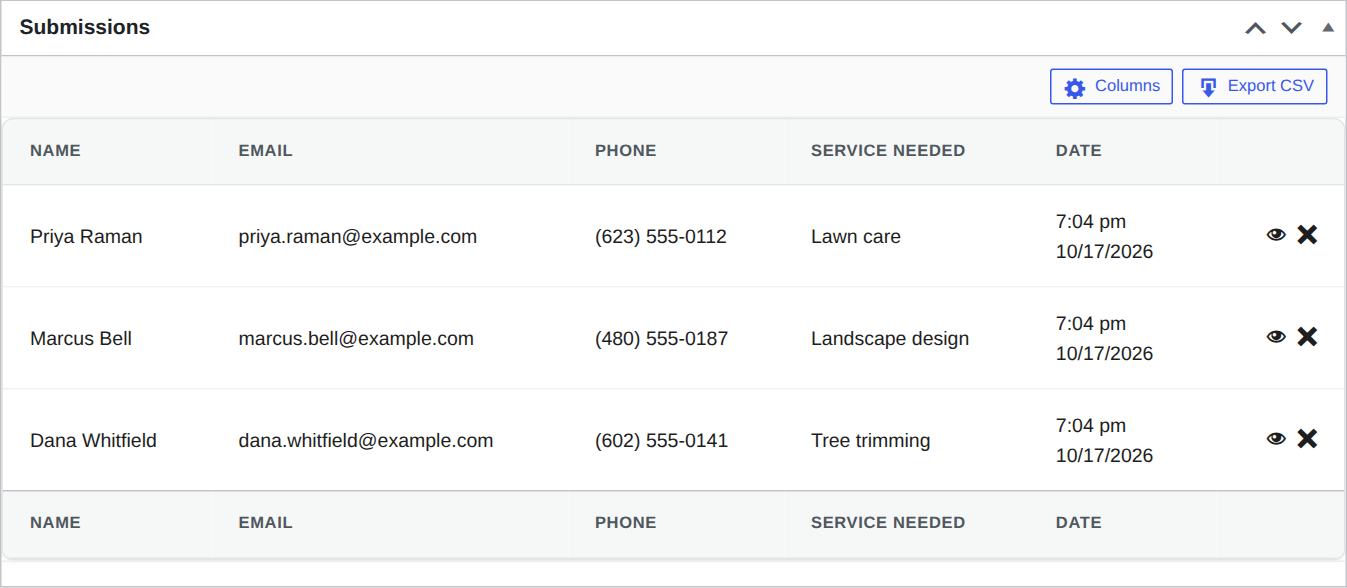
If you’re switching from Contact Form 7 or WPForms, Forms → Import brings your existing forms across in one step, without changing the originals.
Frequently asked questions
Why does my form say “sent” when I never get the email?
The success message only means your server accepted the email. It can still be filtered as spam or rejected by the inbox provider afterwards, and WordPress has no way of knowing. Sending through SMTP with SPF and DKIM set up (Step 4) fixes most of these cases.
Do I really need an SMTP plugin?
Not every site does. Some hosts send mail reliably out of the box. But if your test emails go missing or land in spam, SMTP with an email service is the most dependable fix, and the plugins that set it up are free.
Why do my form emails go to spam?
Usually because the email isn’t authenticated with SPF or DKIM for your domain, or because it’s sent “from” the visitor’s address instead of your own domain. Steps 3 and 4 cover both.
Can I recover form messages that never arrived?
Only if your form plugin saved them. If it did, they’re waiting in your WordPress dashboard. If it only sends email, check your spam folder and your email service’s logs, but messages that were never delivered can’t be recovered from WordPress.
Is Custom Contact Forms free?
Yes. Saved entries, CSV export, Email Diagnostics, the form importer, Mailchimp, webhooks and spam protection are all in the free plugin on WordPress.org. Custom Contact Forms Pro is optional and adds payments, PDF receipts, multi-step forms and more. See Free vs Pro.
Never lose another form message. Download Custom Contact Forms free from WordPress.org, and every entry is saved on your site, whatever happens to the email.
Free on WordPress.org
Never lose another form entry
Custom Contact Forms saves every entry on your site and includes conditional logic, file uploads, a signature field, Mailchimp, webhooks and spam protection, all free.
Get our new form guides by email
Practical guides on forms, email delivery and spam, plus news when Custom Contact Forms gets new features.
We only use your email to send our guides and news. Unsubscribe anytime. Privacy Policy