
Paper waivers get lost, smudged and filed in the wrong box. Emailed PDFs get printed, signed, scanned and sent back days later, if at all. An online signature waiver fixes both: people read the terms, tick to agree and sign with a finger or a mouse, and the signed record lands in your WordPress dashboard before they walk through the door.
In this guide we’ll build a WordPress waiver form that collects a real drawn signature, a record of the exact terms each person agreed to, and a PDF copy you can download for your files. It takes about ten minutes with a ready-made template.
What a good online waiver form needs
Whether you run a gym, a climbing wall, a yoga studio, a tour company, a rental shop or a kids’ camp, a waiver form that holds up to scrutiny has the same ingredients:
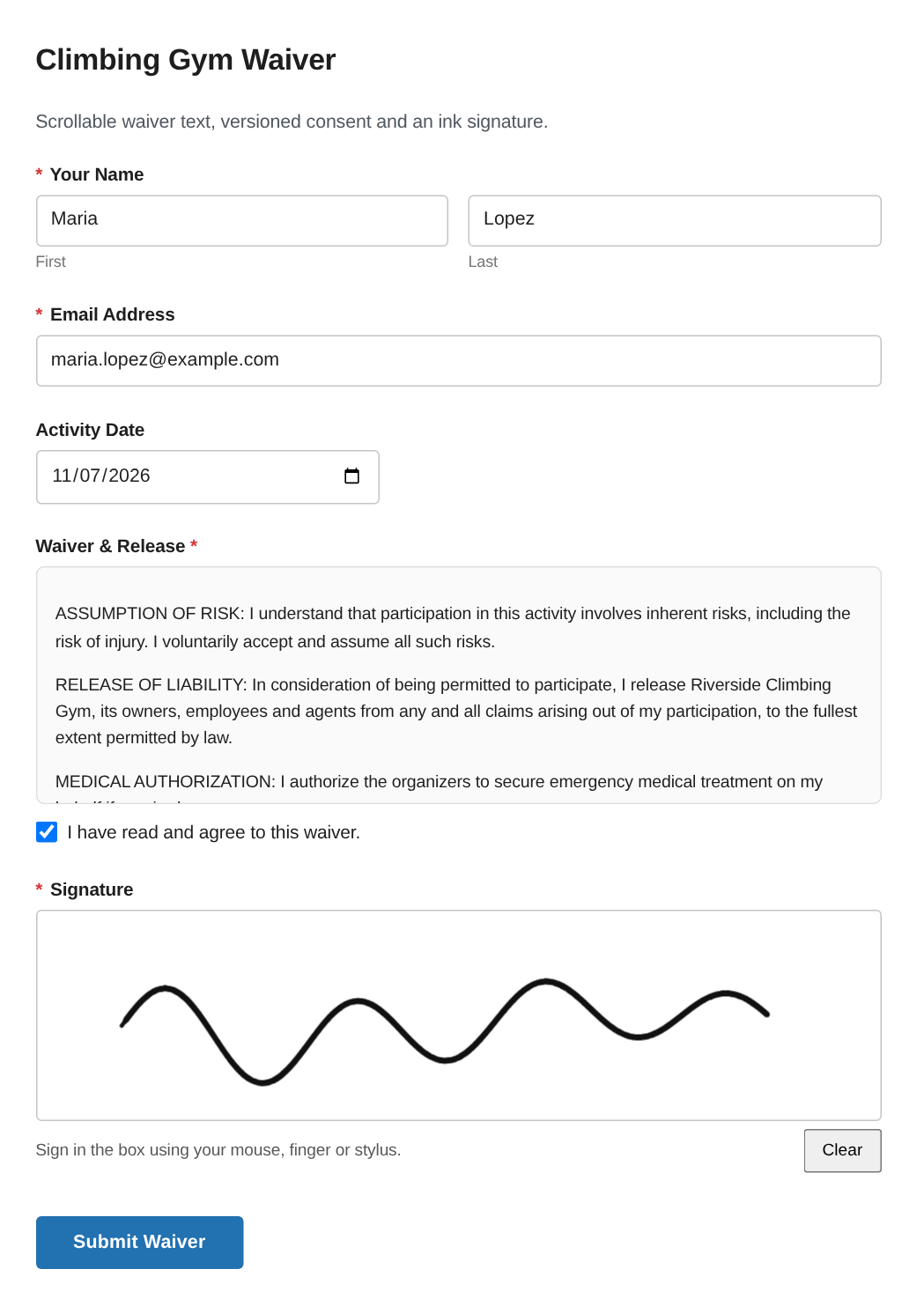
- Who signed: full name and email address, and usually the date of the activity.
- The full terms on screen: not a link to a PDF nobody opens, but the actual text, in a box people scroll through before they agree.
- A clear act of agreement: an unticked checkbox the person ticks themselves.
- A signature: drawn by hand, not just a typed name.
- Proof of what they agreed to: if you update your waiver next season, last season’s signers agreed to last season’s text. Your records need to show that.
- A copy you can produce later: a PDF you can download, print or send to an insurer.
Most WordPress form plugins can do the first four. The last two are where a waiver form usually falls short, and they’re the reason we built versioned consent records and PDF exports into Custom Contact Forms Pro.
How an online signature waiver works
A signature waiver is a release form a participant signs before an activity, agreeing to the risks involved. Collecting it online works like this:
- You share a link to the waiver page, for example in your booking confirmation email, or open it on a tablet at the front desk.
- The participant reads the terms and ticks a box to agree.
- They draw their waiver signature with a finger, stylus or mouse, right on the form.
- The signed waiver is saved in your WordPress dashboard and emailed to you, so you can look it up or download it later.
Because the form lives on your own site, there’s no per-signature fee and no separate e-signature account. The steps below show how to set up a WordPress waiver form that works this way.
What you’ll need
- A WordPress site
- The free Custom Contact Forms plugin, which includes the signature field
- Custom Contact Forms Pro for the Liability Waiver template, versioned terms and PDF records
Only need something simple? Skip to building a basic waiver with the free plugin.
Step 1: Create the form from the Liability Waiver template
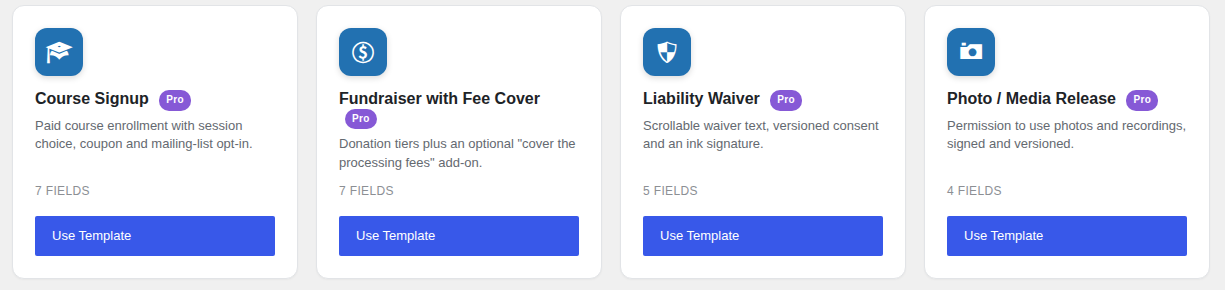
With both plugins active, go to Forms → Templates in your WordPress dashboard and click Use Template on Liability Waiver. You get a complete form in one click: name, email, activity date, the waiver terms with an agreement checkbox, and a required signature.
Step 2: Write your waiver terms
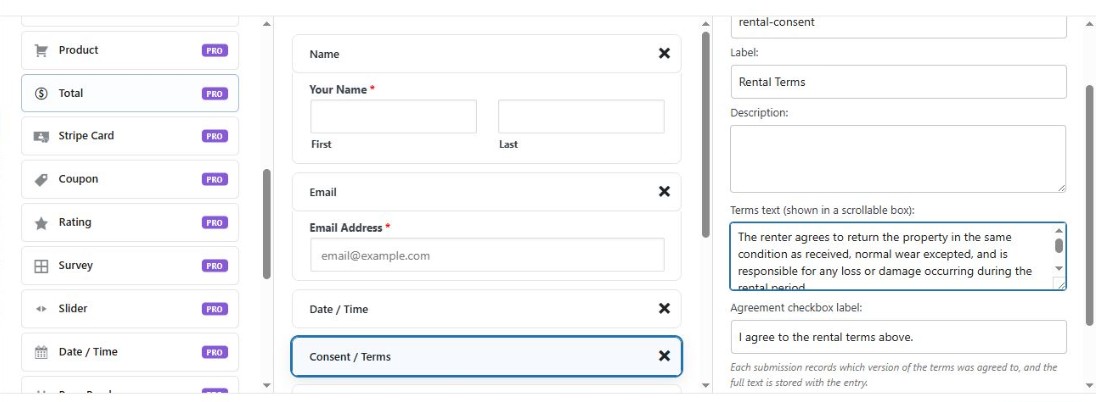
Click the Waiver & Release field in the builder. The template comes with starter text covering assumption of risk, release of liability and medical authorization, with [Organization Name] placeholders. Replace the placeholders with your business name and adjust the wording to fit what you actually do.
You can also change the checkbox wording, for example “I have read and agree to this waiver,” and the label above the terms.
Have a lawyer review your waiver text. The starter text is a starting point, not legal advice, and what makes a waiver enforceable varies by state and country.
Step 3: Understand how the terms are recorded
This is the part most waiver forms get wrong, so it’s worth a minute.
When someone signs, the form doesn’t just save “agreed.” It saves a version code for the exact terms they saw, such as Agreed (terms f5ea4b5f), and stores a copy of the full terms text with their submission. If you edit your waiver next month, the code changes for new signers, while everyone who signed before keeps the version they actually agreed to.
So when someone asks “what exactly did this person sign?”, you have the answer for that person, not just for whatever your waiver says today.
Step 4: Set up the notification emails
Open Form Settings → Notifications. The template already emails the site admin each time a waiver is signed. The email includes every answer and the signature.
To send the participant a copy too, add a second notification and choose the form’s Email Address field as the recipient. It’s a nice touch that also saves you “can you send me what I signed?” emails.
Step 5: Add the waiver form to a page
Create a page such as “Waiver” or “Sign Your Waiver,” add the Custom Contact Forms block and pick your form. If you use a page builder like Elementor, Divi or Bricks, use the shortcode instead, for example .
Then test it yourself on your phone: fill it in, tick the box, sign with your finger and submit. The page won’t scroll while you’re signing, so the signature comes out clean on phones and tablets.
Step 6: Find signed waivers and download a PDF
Every signed waiver is saved in your WordPress database, so nothing depends on an email arriving. Open the form’s submissions to see each entry with the signature, and click Download PDF to save a clean record with the person’s details, the terms version they agreed to and their signature in ink.
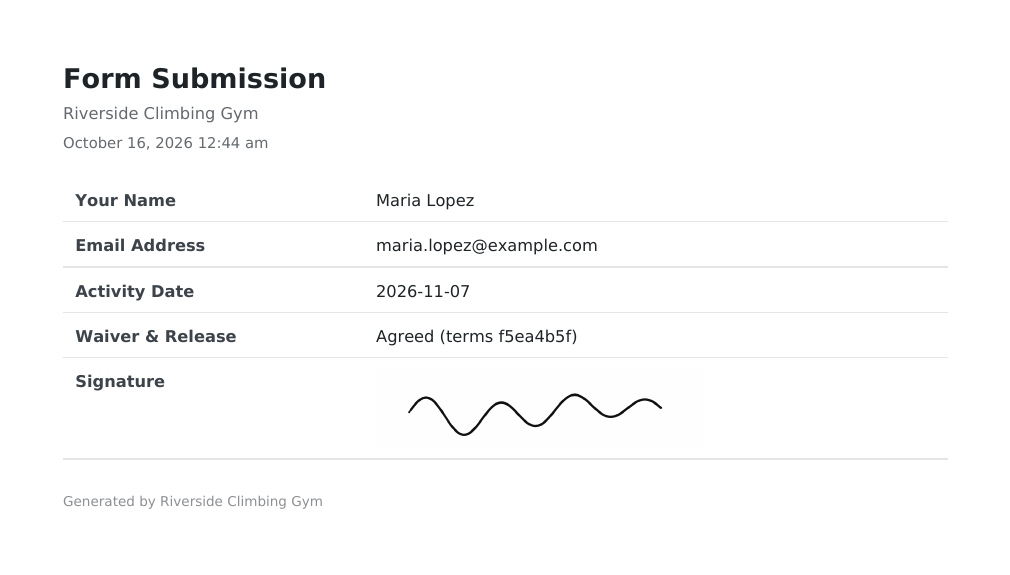
You can also export all waivers to CSV from the form, which is handy for a season-end archive.
Building a basic waiver with the free plugin
If you only need the basics, the free Custom Contact Forms plugin can do it:
- Create a new form and add Name and Email fields.
- Add an HTML field and paste your waiver text into it.
- Add a Checkboxes field with one option, “I have read and agree to this waiver,” and make it required.
- Add a Signature field and make it required.
Signed entries are saved with the signature image and emailed to you. What you don’t get is the record of which version of the terms each person agreed to, the scrollable terms box or the PDF. If you change the HTML text later, there’s no built-in way to show what earlier signers saw. For anything you might need to prove later, the Pro template is the safer choice. See Free vs Pro for the full comparison.
Tips for a waiver form people actually finish
- Send the link before the visit. Put it in your booking confirmation email so people sign at home, not in a queue at the front desk.
- Keep a tablet at the desk with the waiver page open for walk-ins. The signature box works with a finger.
- Keep the language plain. Short paragraphs with clear headings (assumption of risk, release, medical) get read. A wall of legalese gets scrolled past.
- Collect what you’ll need later, such as the activity date, and for minors, a parent or guardian’s name.
- Take payment at the same time if you need to. The Service Agreement + Deposit and Rental Agreement templates combine terms, a signature and a Stripe payment in one form.
Frequently asked questions
What is a signature waiver?
A signature waiver is a document a person signs to confirm they understand the risks of an activity and release the organizer from certain claims. Gyms, tour operators, rental shops, studios and camps commonly ask for one before people take part. Signing it online gives you the same signed record without paper.
Are electronic signatures on a waiver legally valid?
In the United States, the federal ESIGN Act and the UETA, adopted by most states, generally give electronic signatures the same legal effect as handwritten ones. Whether a particular waiver is enforceable is a separate question that depends on its wording and on local law, so have a lawyer review your terms. We’re not lawyers, and this isn’t legal advice.
Can people add their waiver signature on a phone or tablet?
Yes. The signature box works with a finger or stylus on phones and tablets, and with a mouse or trackpad on a computer. A Clear button lets people start over.
Can I see exactly what someone agreed to?
With Pro, yes. Each submission stores a version code for the terms and a copy of the full text as it was when they signed, so editing your waiver later doesn’t change past records.
Can I send the participant a copy?
Yes. Add a notification addressed to the form’s email field, and they’ll receive their answers and signature by email as soon as they submit.
Do I need a separate e-signature service?
No. Everything runs on your own WordPress site and the signed waivers are stored in your own database. There’s no per-signature fee and no third-party account to manage.
How much does it cost?
The Custom Contact Forms plugin and its signature field are free. Custom Contact Forms Pro, with the Liability Waiver template, versioned terms and PDF records, is $80 per year for unlimited sites you own. See pricing.
Ready to go paperless? Get Custom Contact Forms Pro and have your waiver form live in ten minutes, or start with the free plugin and the built-in signature field.
Free on WordPress.org
Never lose another form entry
Custom Contact Forms saves every entry on your site and includes conditional logic, file uploads, a signature field, Mailchimp, webhooks and spam protection, all free.
Get our new form guides by email
Practical guides on forms, email delivery and spam, plus news when Custom Contact Forms gets new features.
We only use your email to send our guides and news. Unsubscribe anytime. Privacy Policy